You have just installed the Bol Processor. Welcome! This page is a guided tour for your first hour with it. You will play some music, look at how it is written, and change a few things to hear what happens. No programming skills are needed.
In a few words, the Bol Processor creates music from texts. A text can be:
- a score that tells exactly what to play, written in a compact notation. These texts are stored in Data projects;
- a grammar, i.e. a set of rules that build musical pieces step by step, often with a share of chance. These are Grammar projects.
The music can be heard as a MIDI file (with the built-in player), sent in real time to a MIDI instrument, or turned into a Csound score that produces a sound file. You can also import existing music from MusicXML scores.
👉 The sections are meant to be read in order, but you can skip any of them. Each one ends with links to the pages of the Tutorials and Examples menus that take you further.
Before you start
If the Bol Processor is not yet installed, follow the instructions on the Install BP3 page for MacOS, Windows or Linux. Csound is optional: you can install it later.
- Start your Apache/PHP server (MAMP or XAMPP) and point your web browser at http://localhost/bolprocessor/php/ (note "http", not "https"). If you are using the standalone "BolProcessor.app" on MacOS, just start it.
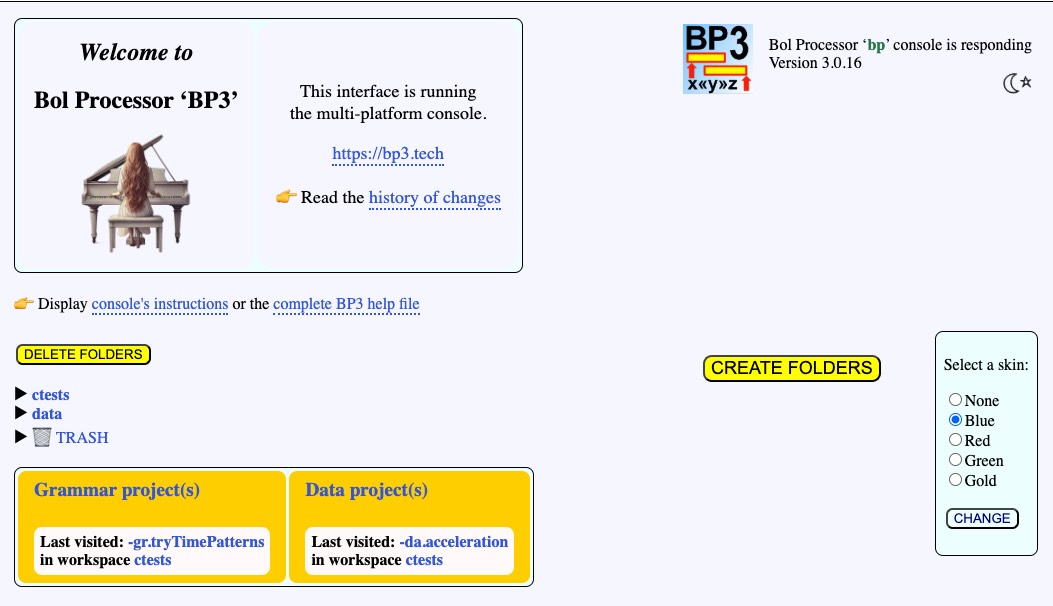
- The home page checks your installation and tells you if something is missing. When everything is fine, it says that the console is "responding". The console is the program that actually computes the music; the pages you see in your browser are its interface.
- Click the "ctests" link. This folder contains all the examples used on this page. The name of each file tells its type: "-da.…" for a Data project, "-gr.…" for a Grammar project, "-se.…" for its settings, etc.
👉 Feel free to modify the examples. The "ctests" folder is restored to its original state each time you update the Bol Processor. For the same reason, keep your own work in another folder (see below).
👉 The interface can be displayed in dark or light mode: use the icon in the top right corner.
Your first sound: a Data project
In the "ctests" folder, click "-da.acceleration". This is a Data project: a text containing one or more musical items written in Bol Processor notation. This one contains a single item:
_transpose(12) _vel(60) E2 . D2 E2 . _vel(65) B2 D2 E2 . G2 B2 D2 E2 . _vel(70) F#2 G2 B2 D2 E2 . Bb2 F#2 G2 B2 D2 E2 . _vel(75) C2 Bb2 F#2 G2 B2 D2 E2 . _vel(77) G#2 C2 Bb2 F#2 G2 B2 D2 E2 . _vel(80) A2 G#2 C2 Bb2 F#2 G2 B2 D2 E2 . _vel(85) Eb2 A2 G#2 C2 Bb2 F#2 G2 B2 D2 E2 . _vel(87) C#2 Eb2 A2 G#2 C2 Bb2 F#2 G2 B2 D2 E2 . _vel(90) F2 C#2 Eb2 A2 G#2 C2 Bb2 F#2 G2 B2 D2 E2 .
Let us read it before listening:
- E2, D2, F#2, Bb2… are simple notes in the English convention (C, D, E…). The Italian/French (do, re, mi…) and Indian (sa, re, ga…) conventions are also available.
- Words starting with an underscore are performance controls. _transpose(12) raises all the notes by one octave (12 semitones), and _vel(60)… _vel(90) set the velocity, i.e. how hard the notes are struck. Here the music gets louder little by little.
- The periods "." cut the line into beats of equal duration. The first beat contains one note, the second beat two notes, the third beat three notes, and so on until twelve notes. Since all beats last the same time, the notes become shorter and shorter: we hear an acceleration, although no duration is written in the score!
This shows the spirit of the Bol Processor notation: you describe the structure of the music, and the machine works out the exact timings.
Play it as a MIDI file
- Below the text, the interface shows the item(s) it has found, each with a PLAY button. Click it.
- A "BP console" window opens. When the console has finished, it shows a MIDI player: click it to listen. A link is also given to download the MIDI file, which is saved in the "my_output" folder.
- Click the Image link at the top of this window. It displays the notes on a time line, where you can see them getting shorter and shorter.
👉 Some MIDI players need an Internet connection to load their sounds. If you hear nothing, check your connection.
Try this: delete all the periods, click SAVE, then PLAY again. Now all notes have the same duration and the acceleration has disappeared. Put the periods back (or use your browser's Undo) and save again.
Play it in real time
If your computer is connected to a MIDI instrument, or to a software synthesiser, you can send the music to it directly. Above the text, select Real-time MIDI among the output options, save this choice, and click PLAY. The sound quality now depends on your instrument, and the music starts without delay. Read the Real-time MIDI page to set up your MIDI inputs and outputs.
Play it with Csound
If you have installed Csound (version 7 or later), the interface tells you that Csound is responding. Select Csound score as the output option and click PLAY. The console writes a Csound score, then Csound turns it into a sound file that you can hear in the audio player. As no particular instrument is specified here, a simple default instrument ("0-default.orc") is used. We will come back to Csound further down.
Finally, select MIDI file again for the next steps.
👉 Did you notice the "-se.Visser2" and "-gr.acceleration" lines at the top of the data? The first one is a settings file (tempo, note convention, graphics, etc.) used to play this data. The second one is the grammar that composed this item… which brings us to grammars.
A Grammar project
A grammar is a set of rules. Each rule says that a symbol on its left side can be replaced with what is on its right side. Starting from the symbol S, the machine applies rules again and again until only musical elements (notes, rests, sound-objects…) remain. The result is a musical item. Composers use grammars to describe the construction of a piece rather than the piece itself.
Open "-gr.Ames" in the "ctests" folder:
-se.Ames
-cs.tryTunings

// A grammar illustrating the construction of a rather
// complex time structure with an undetermined rest.

ORD
_mm(60.0000) _striated

gram#1[1] S --> _ins(1) {PA, _rest PB}

gram#1[2] PA --> {2,- PA1, 2 PA2} {4,PA3}
gram#1[3] PA1 --> {2,F#3}
gram#1[4] PA2 --> {1,F5,A5}
gram#1[5] PA3 --> PA31 PA32
gram#1[6] PA31 --> {1/2,G#3,E5,G5}
gram#1[7] PA32 --> {7/2,Bb4}

gram#1[8] PB --> {1/4,G#5&,C6,E6,B6&} {2,&G#5,&B6}
Some useful comments:
- Related files. The first lines name the files this grammar needs: settings "-se.Ames" and Csound instruments "-cs.tryTunings". The interface finds them and shows buttons at the bottom of the page to open them.
- Comments. Lines starting with // are ignored by the machine. Use them to explain your work.
- Variables and terminals. S, PA, PB, PA1… are variables: they are rewritten by the rules and disappear from the final result. Notes such as F#3 or Bb4 are terminal symbols: they stay and are played.
- Rule numbers. "gram#1[3]" means "rule 3 of subgrammar 1". You don't need to type these numbers: click COMPILE GRAMMAR and the interface numbers (or renumbers) the rules for you. Compiling also checks the grammar and reports errors, such as a symbol that is neither a variable nor a known terminal.
- ORD means that rules are tried in the order they are written. In this grammar each variable has a single rule, so it always produces the same item. Other grammars choose between several rules at random, so each production is different: see the Derivation modes page.
- _mm(60.0000) sets the metronome to 60 beats per minute, and _striated says that the music follows this regular beat.
- Curly brackets { } contain polymetric expressions: several voices played together, separated by commas. In {1/2,G#3,E5,G5}, the number before the first comma is the duration (half a beat), and the three notes form a chord. In {2,- PA1, 2 PA2}, the hyphen - is a silence of one unit, and the number 2 placed before a voice is a silence of two units. Each voice is then stretched or compressed to fit the duration given at the start, here 2 beats. See the Polymetric structures tutorial.
- _rest is an undetermined rest: you don't say how long it lasts, and the machine calculates it. Here, voice PA lasts 6 beats and PB lasts 2¼ beats, so the rest before PB is set to 3¾ beats and both voices end together. Read the Undetermined rests in dance performance page for a real-life use.
- The ampersand & ties notes: G#5& … &G#5 is a single G#5 that keeps sounding across the two expressions. See Tied notes.
- _ins(1) selects instrument 1 of "-cs.tryTunings". It is used when the output is a Csound score.
Now click PRODUCE ITEM(s). The console window shows the item that has been produced, after all variables have been replaced:
_ins(Plucked_string1) {{2, - {2, F#3}, 2 {1, F5, A5}} {4, { 1/2 ,G#3, E5, G5} { 7/2 ,Bb4}}, _rest { 1/4 ,G#5&, C6, E6, B6&} {2, &G#5, &B6}}
Listen to it on the MIDI player, then click the Image link to see how the two voices are placed in time.
👉 A common mistake: the note convention must match the way notes are written. "-se.Ames" uses the English convention (C, D, E…). If you change it to Italian/French, "F#3" is no longer recognised as a note and the production fails. The current convention is displayed on the grammar page, and you can convert all notes of a grammar to another convention with a single click at the bottom of the page.
👉 When a production fails, the console window displays the error messages and gives a link to a file with the details.
To go further: the beginner's tutorial builds grammars step by step. The examples of Harm Visser include "-gr.acceleration", the grammar that produced our first item.
Help messages
You don't need to remember all the performance controls and keywords. At the bottom of the "-gr.Ames" page, click SHOW HELP ENTRIES. The grammar is displayed again, with links on all reserved words. Click "_rest": a window opens on the help entry for this word. The same button is available on Data pages.
The complete help file can also be read here.
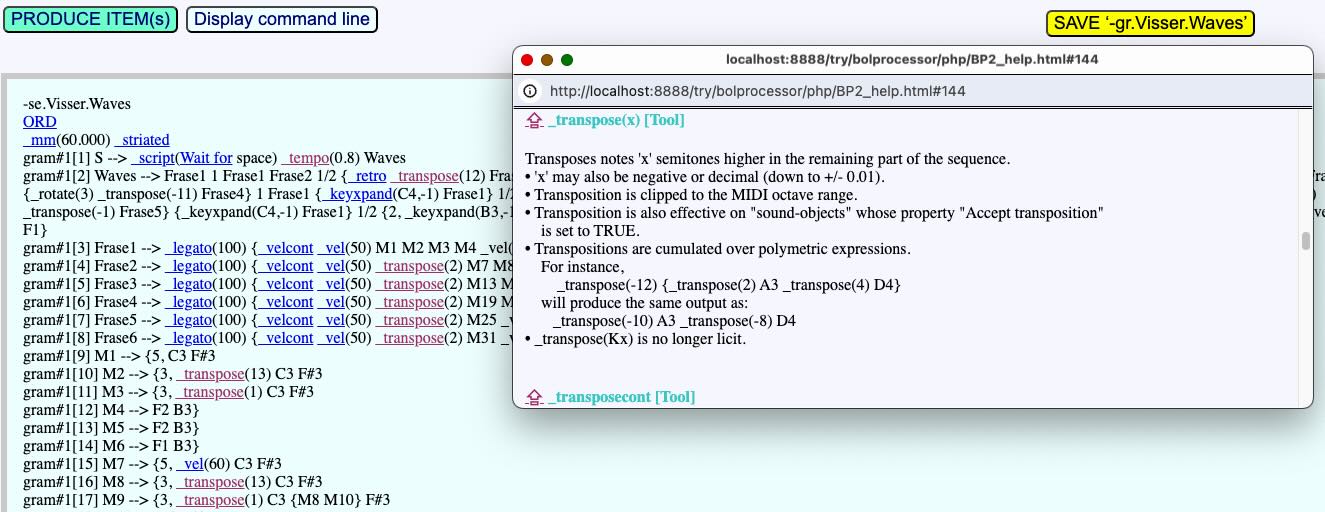
Try the same with "-gr.Visser.Waves", another grammar by Harm Visser. Produce its item and compare its rendering in MIDI with this one, played on physical-model instruments (read explanations):
Create or import data
The "ctests" folder is a place to experiment, but it is restored during each update. Keep your own work in your own folders (also called workspaces).
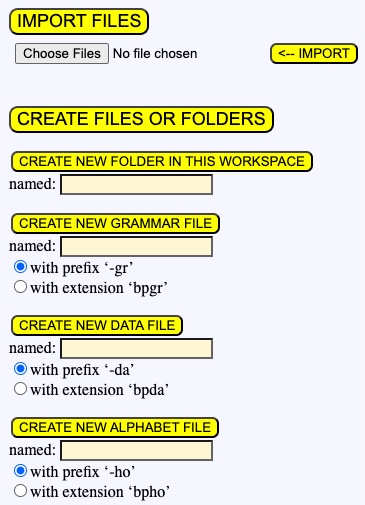
- On the page of a folder, the CREATE FILES OR FOLDERS button opens a form to create a new folder or a new project. Just type a name: the interface adds the right prefix or extension. For example, a grammar called "mygrammar" is saved as "-gr.mygrammar" or "mygrammar.bpgr", as you prefer.
- IMPORT FILES copies files from your computer into the current folder. Only files used by the Bol Processor are accepted, and they get the access permissions the interface needs.
- DOWNLOAD FILES lets you take your projects to another computer, and MOVE moves files between folders.
- Project pages (Data or Grammar) also have download and upload buttons. You can only replace a project with one of the same type, and the replacement can be undone until you save the page.
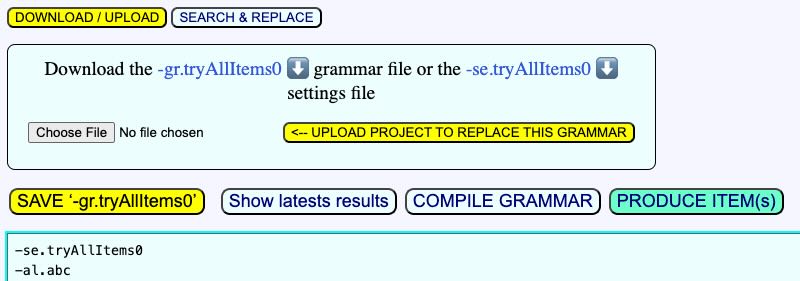
👉 Please don't move files in or out of these folders with the Finder or the File Manager: this can lead to permission errors. If you want to keep your data outside the Bol Processor folder, read the Move data page.
Import MusicXML scores
You can also start from existing music. MusicXML is a standard format for sheet music. Many scores can be downloaded in this format, and score editors such as MuseScore can export it. The Bol Processor converts these scores to its own notation, so you can play them, analyse them, or reuse their fragments in your own grammars.
- Create a new Data project in one of your folders and open it.
- At the top of the page, next to Import MusicXML, choose a file and click ← IMPORT. To try, you can take one from the "ctests/xmlsamples" folder.
- The interface shows the parts of the score and lets you choose which ones to import. The result is a set of polymetric expressions that you can play like any other data.
Below is Beethoven's Fugue in B flat major imported from MusicXML. It shows both the accuracy of the conversion and the complexity of the music that the Bol Processor can handle:
👉 Listen in stereo!
All the details are on the Importing MusicXML scores page. Two famous works are discussed on The Well-tempered Clavier and Bach well-tempered tonal analysis. Music can also be entered from a MIDI keyboard: see Capture MIDI input (work in progress).
Change the start string
A grammar normally starts its work from the symbol S. But you can start from any other variable, to listen to just one part of the construction.
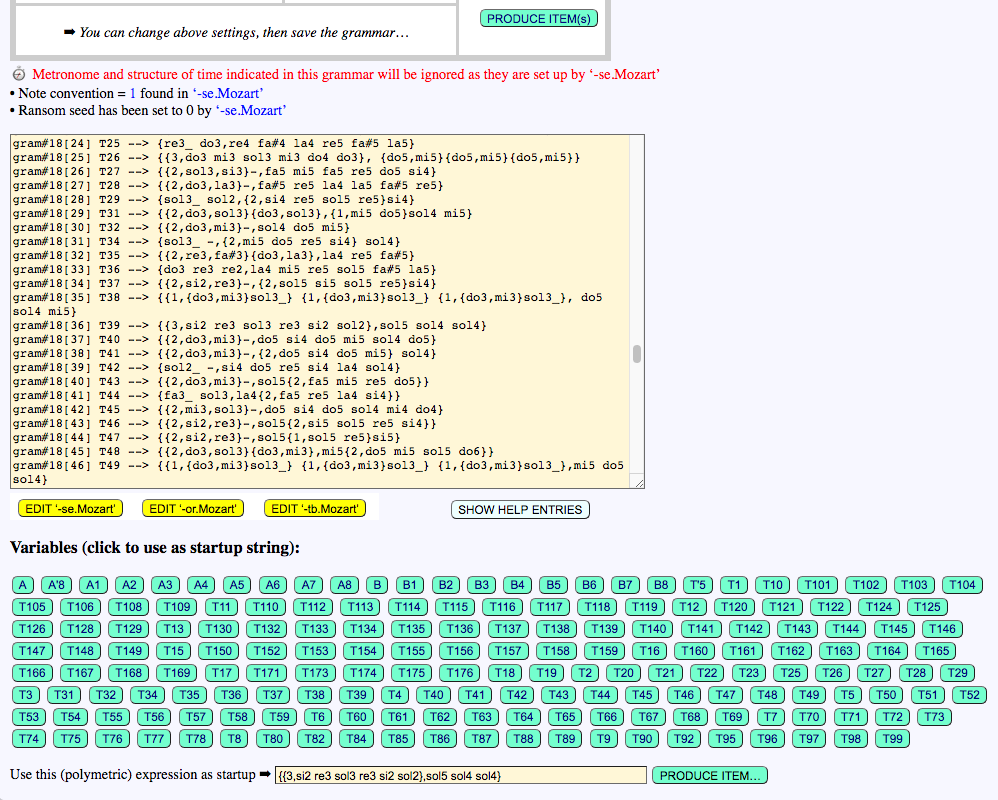
- Open "-gr.Mozart". It is a version of Mozart's musical dice game, in which the variables stand for short musical fragments assembled by chance.
- At the bottom of the page, the interface lists all the variables as buttons. Click one of them to produce an item starting from this variable.
- Variables A1 to B8 are chosen at random, so they give a different result each time. Variables T1 to T176 are fixed fragments, so they always sound the same.
- You can also type a polymetric expression in the field at the bottom, for example {{2,sol3,si3}-,fa5 re5 si4}, and click PRODUCE ITEM. The expression may contain variables. Note that this grammar uses the Italian/French note convention (do, re, mi…).
👉 The settings of this grammar have the Non-stop improvize option checked. Set the output to Real-time MIDI and click PRODUCE ITEM(s): the dice game plays forever, with a new piece each time! Click STOP or PANIC to end it.
Play data
Open "-da.checkPoly". This Data project contains many short items that show the possibilities of polymetric expressions.
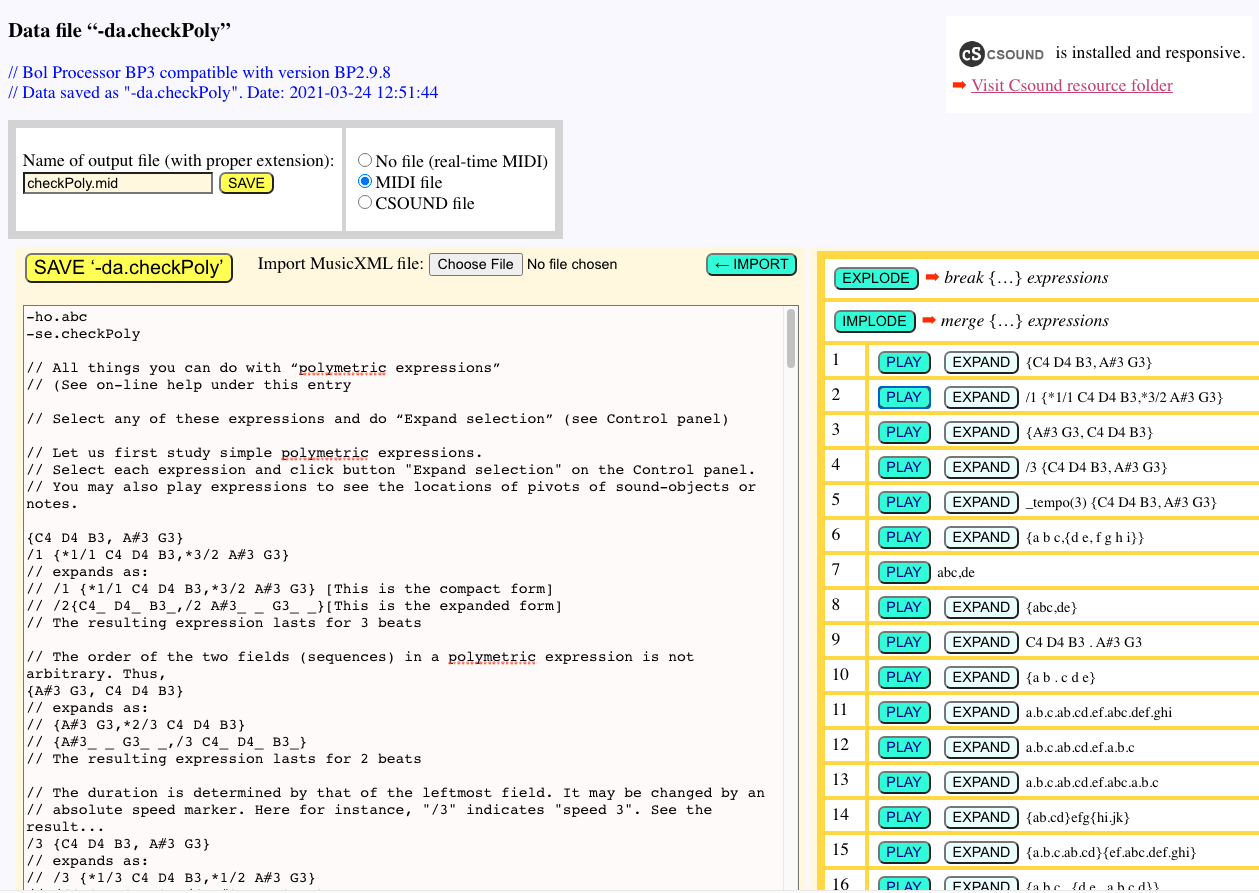
- The interface finds every item in the text and shows it with its own buttons. Items are separated by blank lines, so an item can take several lines, for example a title in square brackets above the music. Lines starting with // are comments.
- PLAY plays the item with the output you have chosen (MIDI file, real-time MIDI, Csound score…).
- EXPAND shows the item written out in full, with every duration made explicit. It is a good way to understand how the machine reads polymetric expressions.
To learn more about this notation, read Polymetric structures, Tied notes and Carrying over controls.
Sound-object prototypes
So far we have played simple notes. The Bol Processor can also play sound-objects: small pieces of music, such as a drum stroke, a chord or a melodic ornament, that are given a name and used like notes. Their name comes from the bols, the spoken syllables of tabla drumming, which were the first application of the Bol Processor.
The content of sound-objects is stored in sound-object prototype files ("-so.…"). An alphabet file ("-al.…") lists the names that a grammar may use.
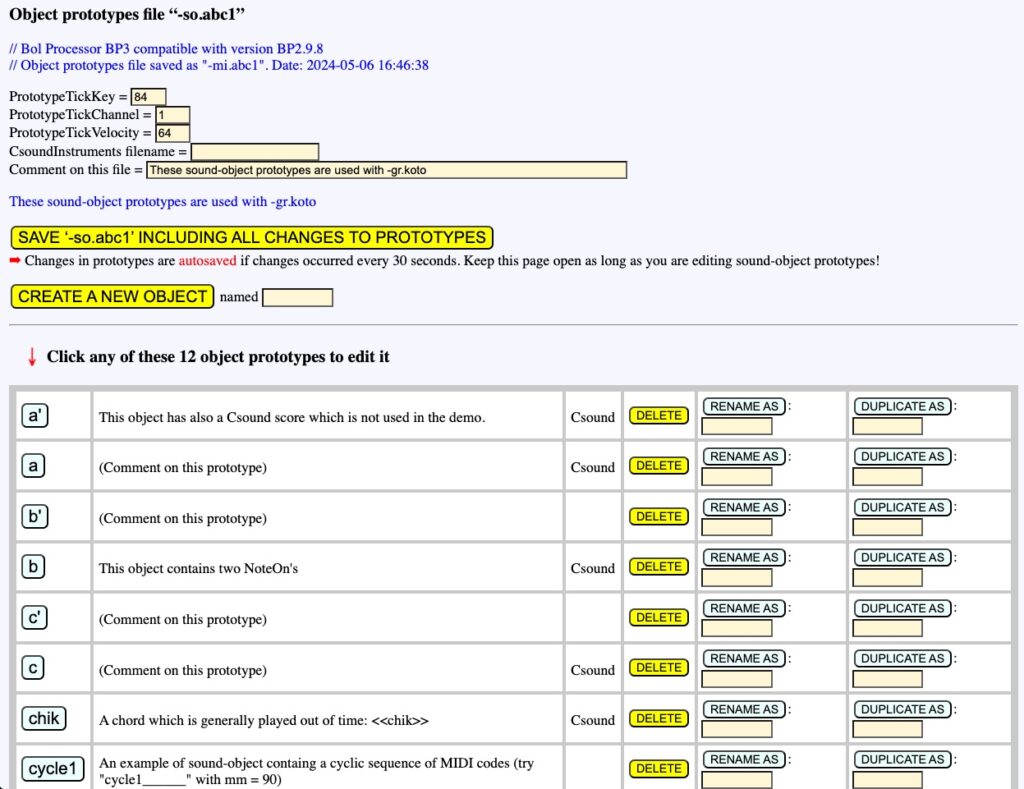
- Open "-so.abc1" in the "ctests" folder. Below the horizontal line is a table of its sound-objects: a, a', b, chik, cycle1… These objects are used by the grammar "-gr.koto3", presented on the Interactive improvisation with sound-objects page.
- Click the button "chik" to open this object. Its PLAY button lets you hear it: it is a chord of three notes. You can also play a combination of objects typed in the form.
- Each object has parameters that tell the machine how to place it in time: can it be shortened or stretched? Can it overlap with its neighbours? Can it be moved slightly? These are explained on the Sound-objects page.
- Objects can be created, duplicated or deleted. Try a couple of DELETE buttons: a RESTORE ALL DELETED OBJECTS button appears to undo it. If you create an object, also add its name to the alphabet file.
- Changes are saved automatically every 30 seconds (see Autosave).
To go further: Sound-objects, Silent sound-objects, and Time-setting of sound-objects for the algorithm.
Csound
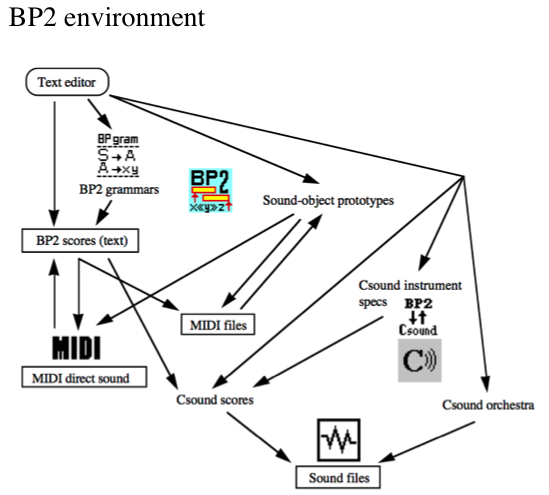
Csound is a free program that creates sounds from two texts: an orchestra, which describes the instruments, and a score, which lists the notes to play. The two programs complement each other: the Bol Processor deals with musical structures and writes the score, and Csound deals with sound.
With Csound, you are no longer limited to the 128 keys and the instruments of MIDI. You can use any tuning or temperament (see Microtonality), and design your own instruments.
- Open "-gr.Mozart" in the "ctests" folder and select Csound score as the output option.
- If Csound (version 7 or later) is installed, the interface finds it and says that it is responding. Otherwise, it suggests installing it.
- Click PRODUCE ITEM(s). The console writes the score "Mozart.sco" in the "my_output" folder, then Csound creates a sound file that appears on an audio player. Click Read the output file to see the score.
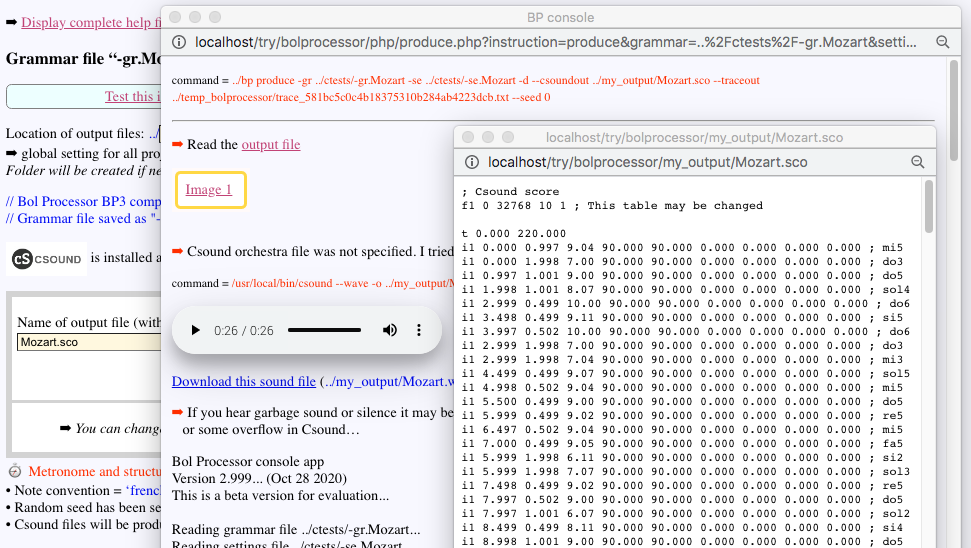
Each line starting with "i" is a note. Its first fields are the instrument number, the start time and the duration (in beats), then the pitch. The following fields carry the volume and other parameters that can change during the note. The name of the note is given as a comment at the end of the line.
A just-intonation version of the dice game can be heard on the Just intonation: a general framework page. All the Csound features are described in Csound in BP3, in particular Csound checkup, Csound objects and Csound tuning in BP3.
Csound instrument files
The Bol Processor can turn MIDI-style controls ("pitchbend", "modulation", "volume", etc.) into parameters of Csound instruments, and it can also handle parameters that have no MIDI equivalent. The orchestra can then make these parameters vary smoothly during a note, using the GEN07 (linear interpolation) or GEN08 (cubic spline) Csound generators. All this is set up in a "-cs" Csound instrument file such as the one shown below, and documented in chapter 17 of the BP2.9.8 reference manual.
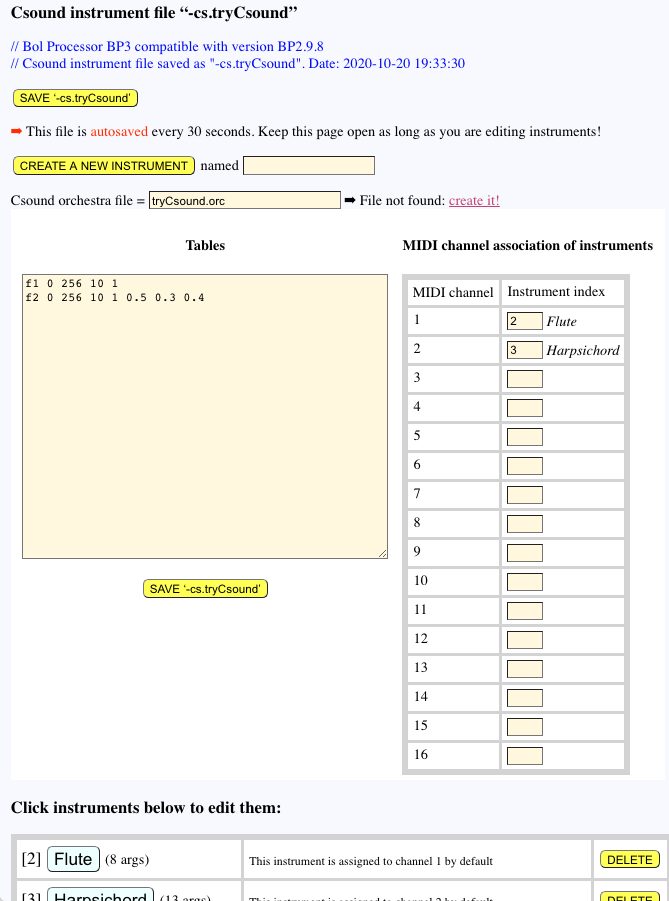
- Open "-cs.tryCsound" in the CSOUND resources folder. This page is in autosave mode (see below): changes to Csound instruments are saved automatically twice per minute.
- This file is linked to a Csound orchestra file called "tryCsound.orc". As this file is missing from the "csound_resources" folder, a link is displayed to create it. Otherwise, the link would open it for editing. The arguments declared in the orchestra must match those in the instrument file.
- The Tables text area contains Csound function tables. They are not used to create the score. They are only copied at the beginning of it.
- Csound instruments can be associated with MIDI channels. For example, here, MIDI messages sent to channel 2 are converted into notes of instrument 3 "Harpsichord".
- At the bottom of the page is the list of Csound instruments declared in this file. They can be deleted, restored and duplicated in the same way as sound-object prototypes. Clicking the blue button with the name of an instrument opens its editor.
A simple orchestra file called "0-default.orc" is provided in the "csound_resources" folder. It is used when no other orchestra is specified, as in our first examples. See also the Simple Csound orchestra page.
Editing a Csound instrument
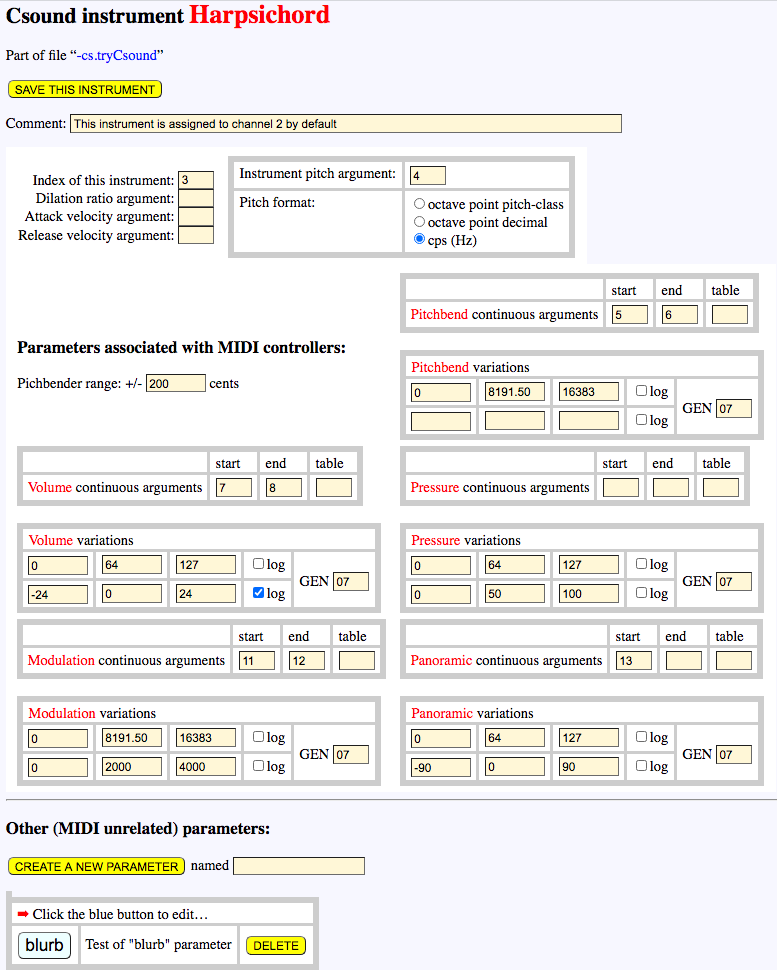
The Csound instrument editor is very similar to the one of BP2.9.8. A detailed description can be found in chapter 17 of the BP2.9.8 reference manual.
- For example, let us look at the instrument Harpsichord in "-cs.tryCsound". Its index is "3", which means that it can be called as _ins(3) or _ins(Harpsichord) in a Bol Processor score.
- The parameters displayed on the "Harpsichord" page are those associated with MIDI controllers. They can change continuously if two arguments are given for their values at the start and at the end of each note. The argument under "table" is the reference of an optional function table.
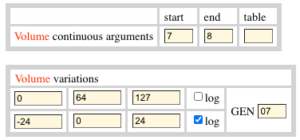
- For the volume parameter, the MIDI values "0", "64" and "127" are converted to the Csound values "-24", "0" and "+24" respectively. This converts a linear scale into a logarithmic scale.
- The start and end values of a continuously changing volume are sent to arguments "7" and "8" respectively. The orchestra uses them to set the volume, with the GEN07 (linear interpolation) or GEN08 (cubic spline) generators.
- Given three pairs of input/output values, the Bol Processor tries to define a quadratic mapping between input and output. It is not always possible to fit the three values to a monotonic quadratic function… See the Csound argument mapping page for a detailed explanation.
- At the bottom of the page is a list of Csound parameters that have nothing to do with MIDI controllers. This is where Csound production by the Bol Processor can differ radically from MIDI!
- This instrument has a single additional parameter called "blurb".
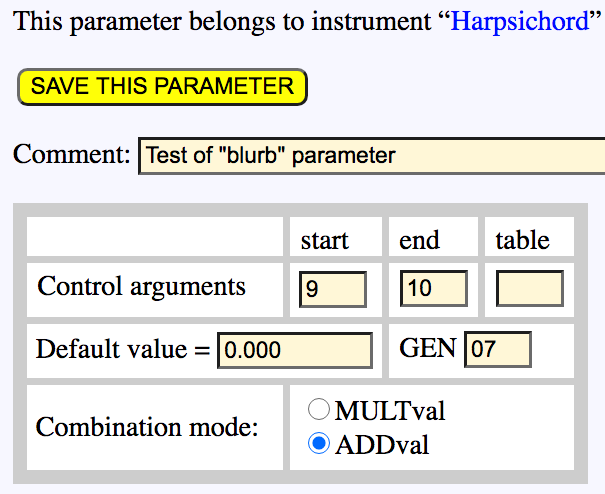
These additional parameters can be created, deleted and restored in the same way as instruments. The interface makes sure that a new parameter does not have the same name as an existing or (temporarily) deleted parameter.
Let us look at the "blurb" parameter (image on the left). Each parameter has a default value, which is not necessarily zero. Values found in Csound scores can be combined additively (ADDval) or multiplicatively (MULTval). The "blurb" parameter sends its start value to argument "9" of the Csound score, and its end value (for continuous variations) to argument "10".
Using a Csound instrument in a grammar

Here is a simple example showing the basic features of Csound in the Bol Processor. A complete demonstration on a real musical example can be found on the Sarasvati vina page. All the features of the Csound implementation are documented on the Csound checkup and Csound objects pages, with examples that you can try yourself.
The Data project "-da.tryCsound" calls "-cs.tryCsound" and uses its instrument "Harpsichord" (number 3). Type the following line in a Data project linked to "-cs.tryCsound" and play it with the Csound score output:
_ins(Harpsichord) _volumecont _volume(127) A4 G4 C5 A5 A4 G4 C5 A5 _volume(0)
The Csound score produced is:
; Csound score
f1 0 256 10 1
f2 0 256 10 1 0.5 0.3 0.4

t 0.000 60
i3 0.000 1.000 440.000 8192.000 8192.000 127.000 111.125 0.000 0.000 0.000 0.000 0.000 ; A4
i3 1.000 1.000 391.995 8192.000 8192.000 111.125 95.250 0.000 0.000 0.000 0.000 0.000 ; G4
i3 2.000 1.000 523.251 8192.000 8192.000 95.250 79.375 0.000 0.000 0.000 0.000 0.000 ; C5
i3 3.000 1.000 880.000 8192.000 8192.000 79.375 63.500 0.000 0.000 0.000 0.000 0.000 ; A5
i3 4.000 1.000 440.000 8192.000 8192.000 63.500 47.625 0.000 0.000 0.000 0.000 0.000 ; A4
i3 5.000 1.000 391.995 8192.000 8192.000 47.625 31.750 0.000 0.000 0.000 0.000 0.000 ; G4
i3 6.000 1.000 523.251 8192.000 8192.000 31.750 15.875 0.000 0.000 0.000 0.000 0.000 ; C5
i3 7.000 1.000 880.000 8192.000 8192.000 15.875 0.000 0.000 0.000 0.000 0.000 0.000 ; A5
;
e 10.000
- Argument "4" is the pitch, here in Hertz (440 for A4).
- Arguments "5" and "6" are the start and end values of the pitchbend, as specified by the instrument. They remain at the default value "8192" in the absence of pitchbend instructions.
- Arguments "7" and "8" are the start and end values of the volume. The volume decreases from 127 to 0 over the eight notes, as expected.
- The _volumecont instruction at the beginning of the sequence means "continuous volume". It resolves a difference between MIDI and Csound: in MIDI, each event happens at a point in time, whereas a Csound note is a segment of time with a duration. It is then up to the orchestra to decide how the parameter changes from the start to the end of each note.
- Arguments "9" and "10" remain at the default value "0" of the unused modulation parameter.
- Arguments "11", "12" and "13" remain at the default value "0" of the unused panoramic parameter.
Csound scores created with "-cs.tryCsound" cannot be played with "0-default.orc", because their arguments do not match.
A real musical example using many features of Csound in the Bol Processor is a phrase of Carnatic music designed by Srikumar K. Subramanian in 1996. Read the description of this example and listen to it (in just intonation):
Editing the Timebase
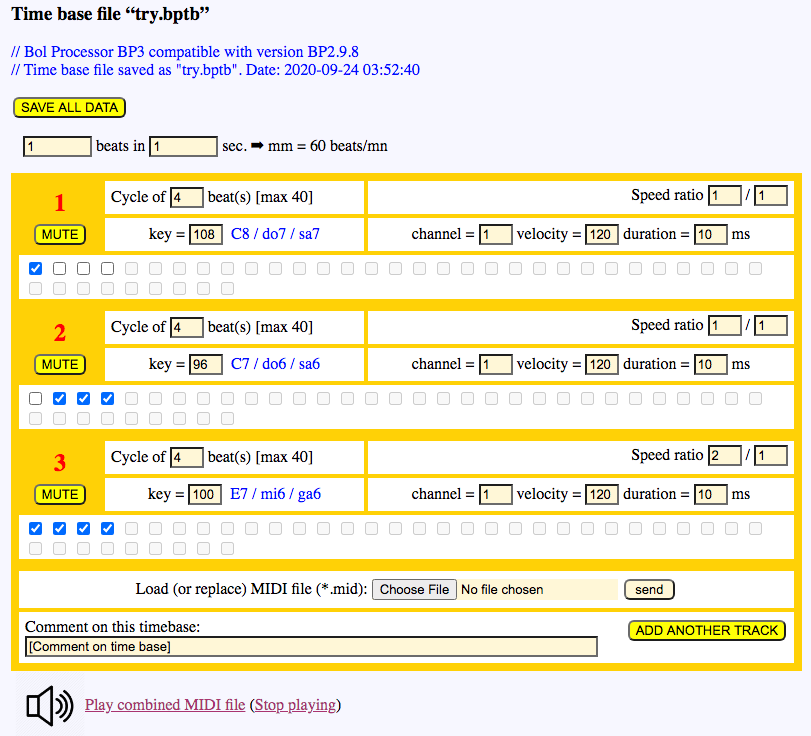
The Timebase is a tool for creating a rhythmic pattern (a "tick pattern") to be superimposed on a piece of music produced by the Bol Processor. Superimposition in real time has not yet been implemented in the 'BP3' console, but you can try it by importing a production of the Bol Processor saved as a MIDI file.
- Create a new timebase called "try.bptb" in the "ctests" folder and open it.
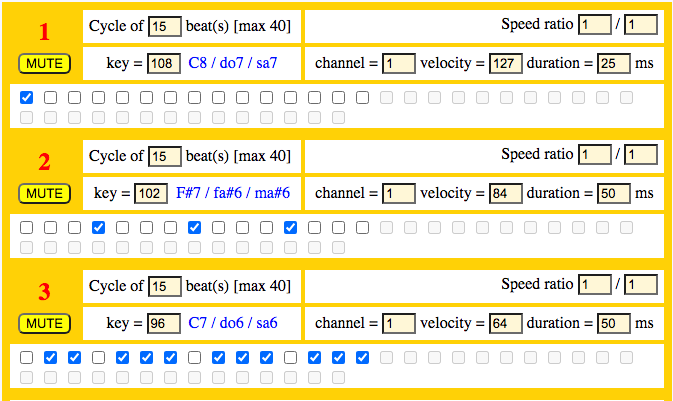
- By default, the timebase contains 3 tracks, 2 of which are set to a simple 4-beat pattern at mm = 60 beats/minute. The third track is empty. Fill it with 4 strokes on key = 100 at a speed ratio of 2/1.
- Now listen to the combined tracks (repeated 3 times):
- To understand the structure, you can mute some tracks.
- Now click "Choose File" to select a MIDI file, for example "acceleration.mid", and click the "send" button to import it.
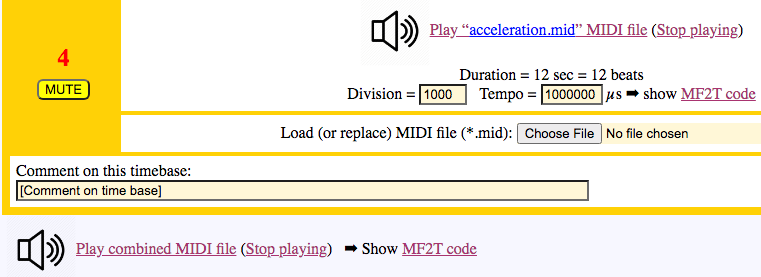
- You can listen to the imported file alone, and to its combination with the tick pattern:
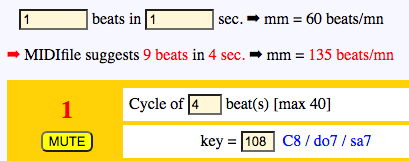
- The two fit together because the piece was created at mm = 60 and in a rhythmic pattern of 4 beats. Try changing the metronome value in the table above. You will get a warning if the metronome setting does not match the tempo declared in the imported MIDI file.
- For example, try a rhythmic cycle above "this_song.mid" in the "ctests" folder. You will be asked to set the metronome to 9 beats in 4 seconds, as declared in the MIDI file (picture on the right). The timing is perfect:
- You can add as many tracks as you like. (The limit in BP2 was 3 tracks.)
- Playing with speed ratios creates complex cycles that can be used to control a drum machine, if the appropriate channels, key numbers and velocities are set up. Traditional rhythmic structures can also be programmed easily. See the examples below:
Tick patterns as polymetric expressions
➡ For experts!
The Timebase page offers a convenient way of superimposing a tick pattern on a production of the Bol Processor saved as a MIDI file. Timebases can also control a MIDI drum machine taking part in the performance. It would be better to make the drum track part of the performance itself, since polymetric expressions can handle superimpositions. We will see that this is often possible, but tedious. (A more systematic approach is described on the Timebase to polymetric page.)
A polymetric equivalent of the tick pattern shown above would be:
{_chan(1) _vel(120) _staccato(99) C8 - - -, _chan(1) _vel(120) _staccato(99) - C7 C7 C7,
_chan(1) _vel(120) _staccato(98) E7 E7 E7 E7 E7 E7 E7 E7}
This expression is displayed at the bottom of the Timebase page.
Let us try to add this polymetric expression as a variable "Drum" to the grammar "-gr.acceleration":
S --> {Piano, Drum}
Piano --> _vel(60) A B _vel(65) C D _vel(70) E F _vel(75) G _vel(77) H _vel(80) I _vel(85) J _vel(87) K _vel(90) L
A --> E2 .
B --> D2 A
C --> B2 B
D --> G2 C
E --> F#2 D
F --> A#2 E
G --> C2 F
H --> G#2 G
I --> A2 H
J --> D#2 I
K --> C#2 J
L --> F2 K
Drum --> {_chan(1) _vel(120) _staccato(99) C8 - - -, _chan(1) _vel(120) _staccato(99) - C7 C7 C7,
_chan(1) _vel(120) _staccato(98) E7 E7 E7 E7 E7 E7 E7 E7}
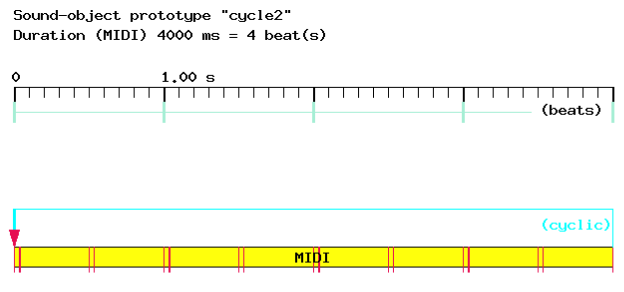
Unfortunately, this does not work, because the "Drum" pattern should be repeated at the right tempo instead of being stretched to the duration of "Piano"… The solution is to replace it with a cyclic sound-object. Let us do it:
- Create the following "-gr.drum" grammar and use it to produce a MIDI file called "drum.mid":
S --> {_chan(1) _vel(120) _staccato(99) C8 - - -, _chan(1) _vel(120) _staccato(99) - C7 C7 C7,
_chan(1) _vel(120) _staccato(98) E7 E7 E7 E7 E7 E7 E7 E7} - Create a sound-object prototype file called "-so.drum" and define a sound-object called "cycle2".
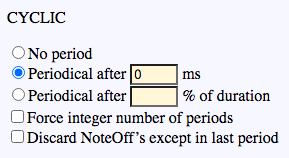
- Set it to "cyclic" (see picture on the left).
- Import "drum.mid" into the sound-object prototype "cycle2".
- Bad news: its duration is 6000 ms instead of the expected 4000 ms…
- A look at EXPLICIT MIDI codes shows that the last 2 seconds are a fade-out added by the Bol Processor to avoid an abrupt end.
- Good news: the sound-object prototype editor lets you crop the sound-object by cutting its end. So let us crop it to 4000 ms.
- Listen to the cropped "cycle2" sound-object and look at its image. Everything is perfect. This object sounds identical to the pattern programmed on the Timebase page:
Cropping is done carefully: if necessary, the algorithm rewrites the "NoteOff" messages deleted by the cropping. - Now the sound-object can be added to the grammar as follows:
-al.drum
S --> {Piano, cycle2}
Piano --> _vel(60) A B _vel(65) C D _vel(70) E F _vel(75) G _vel(77) H _vel(80) I _vel(85) J _vel(87) K _vel(90) L
A --> E2 .
B --> D2 A
C --> B2 B
etc…
J --> D#2 I
K --> C#2 J
L --> F2 K
- The "cycle2" sound-object and its prototype file "-so.drum" must be declared in the following "-al.drum" alphabet file:
-so.drum
*
cycle2
The ‘*’ on the second line of the alphabet is an arbitrary symbol declaring a homomorphism — not used here.
- This method follows the Bol Processor model, but it is tedious. Worse still, the equivalent polymetric expression can become extremely complex if the speed ratios and/or beat cycles of the tracks are not the same. In this case, it is not displayed at the bottom of the Timebase page.
Scripts
- Bol Processor BP2.9.8 was fully scriptable: all commands launched from its menus could be recorded as sequences of script instructions and run again at will. This included opening folders and files, modifying text or doing something with the selection.
- A script was run every evening for about half an hour, checking all procedures and tracking changes in the output data, in addition to the sound check.
- This level of automation is not possible in BP3, because the console and its PHP interface are separate. As a result, many BP2 script instructions are not valid in BP3. They are ignored when the script is run.
- Consider for instance "-sc.tryMe":
Show messages OFF
Note convention = English
Show graphics ON
Play - - {2,G4,E4,C4,- C5 - C5 {C5_-,A#4_ _}}
Show messages ON
Activate window Scrap
Type Welcome to <a href="https://bolprocessor.org/">Bol Processor BP3</a>...
Type Hope you <big><i><font color="green">enjoyed</font></i></big> the music!
Type BP3 is now waiting for you to play ‘C4’ on the MIDI keyboard
Type <return>
Wait for C4 channel 1
Run script -sc.trySubscript
Type That's all folks!
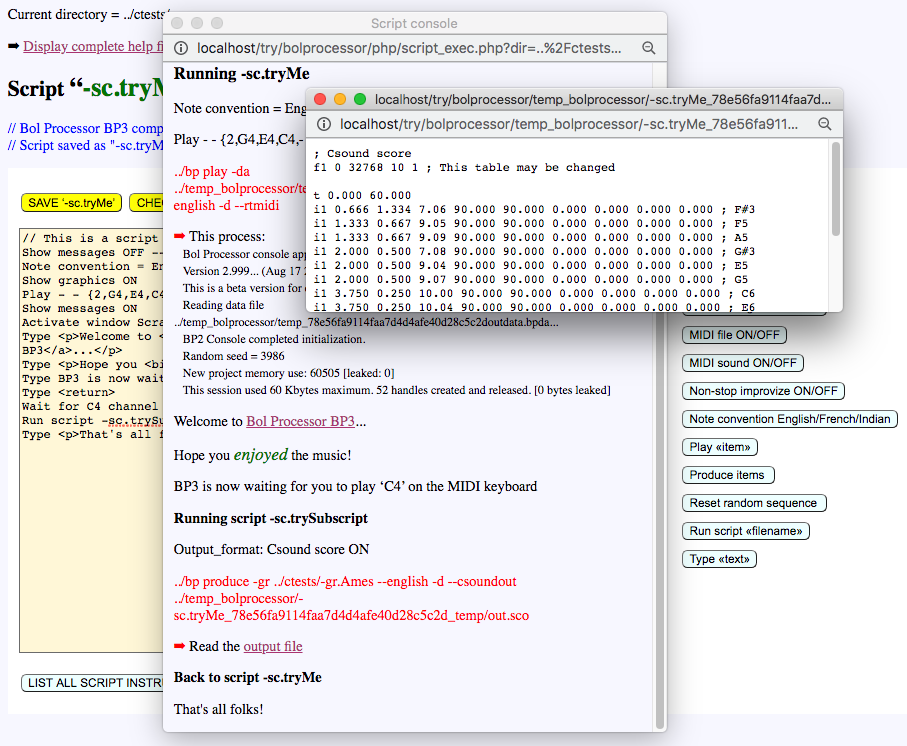
- In this script, the instructions "Show messages OFF", "Show graphics ON", "Show messages ON", "Activate window Scrap" and "Wait for C4 channel 1" are ignored. The "Play" instruction expands the polymetric expression - - {2,G4,E4,C4,- C5 - C5 {C5_-,A#4_ _}} and sends it to MIDI in real time. The note convention is set to "English" to recognise "G4", "E4" etc. as simple notes. The tempo is the standard metronome = 60 beats per minute.
- The "Type" instruction displays a line of text (which may contain HTML elements).
- This script calls a subscript called "-sc.trySubscript" in the same folder. Its content is:
Load project -gr.Ames
Csound score ON
Produce items - Here the machine calls the grammar "-gr.Ames" and sets the output format to "Csound score".
- The execution of the script is displayed in a pop-up window (see image above), which lists (in red) the commands sent to the console. The second command produces a Csound score, as expected.
- The image also shows (light blue) buttons for entering script instructions, so that no typing is required. A CHECK THIS SCRIPT button shows any errors, such as a file not found.
- Below the script, the LIST ALL SCRIPT INSTRUCTIONS button lists all the instructions handled by BP2.9.8, indicating which ones are obsolete in BP3 and which ones are under development.
Autosave
The autosave feature works like the automatic saving of Google Docs or WordPress pages. It is used when editing sound-object prototypes and Csound instruments.
When you edit the prototypes of "-so.abc1", all data belongs to this file. Clicking the SAVE THIS PROTOTYPE button while working on a particular prototype only updates a temporary file, whose path is shown at the top of the page. When you have finished, you are expected to return to the "-so.abc1" page and click the SAVE ‘-so.abc1’ INCLUDING ALL CHANGES TO PROTOTYPES button. Fortunately, the autosave, shown by a red line at the top of the page, does it for you in the background.
The same feature is used on the page of Csound instrument files. For instance, the file "-cs.tryCsound" is saved automatically every 30 seconds while you are editing its instruments or additional parameters.
👉 Temporary files are kept in the "temp_bolprocessor" folder, in a subfolder whose name contains the identifier of your browser session. If you restart your browser or your computer, a new session begins and a new subfolder is created. The interface deletes subfolders that are more than 24 hours old. Thanks to the autosave, no data is lost.
For developers: the autosave is a simple call of JavaScript code in the files "autosaveObjects.js" or "autosaveInstruments.js". The command is myVar = setInterval(savePost, 30000), where "30000" means 30 seconds. A savePost() function sends POST requests to "autosaveObjects.php" or "autosaveInstruments.php".
Where to go next
You have now seen the main features of the Bol Processor. Here are some suggestions for the next steps:
- Learn to write grammars: A beginner's tutorial, then Derivation modes, Flags in grammars and Pattern grammars.
- Master the notation: Polymetric structures, Tied notes, Sound-objects, Serial tools.
- Play live: Real-time MIDI, Live coding, Interactive improvisation with sound-objects.
- Explore tunings: Microtonality, Csound tuning in BP3, MIDI microtonality, Raga intonation.
- Listen to examples: Mozart's musical dice game, Harm Visser's examples, Shapes in Rhythm, Sarasvati vina, and all the pages of the Examples menu.
👉 Don't hesitate to ask questions or send suggestions via the contact form, or join the BP developers list on SourceForge.