Notes can be entered from a connected MIDI device to the Grammar or Data projects of BolProcessor BP3. This is a monophonic input with no timing parameters. For time-tagged MIDI capture, refer to this page.
If you are having problems connecting to MIDI devices, check out the instructions on the Real-time MIDI page. We will remind you of the minimum procedure here. The same applies to Grammar and Data projects.
Let us assume that you connected a MIDI piano keyboard to a USB port of the machine running BP3. My keyboard's name is "Pocket Key 25". The only step required is to declare the keyboard as an input device.
Select Real-time MIDI and click SAVE format. Then click Add an input and SAVE MIDI ports. You will then see the following:
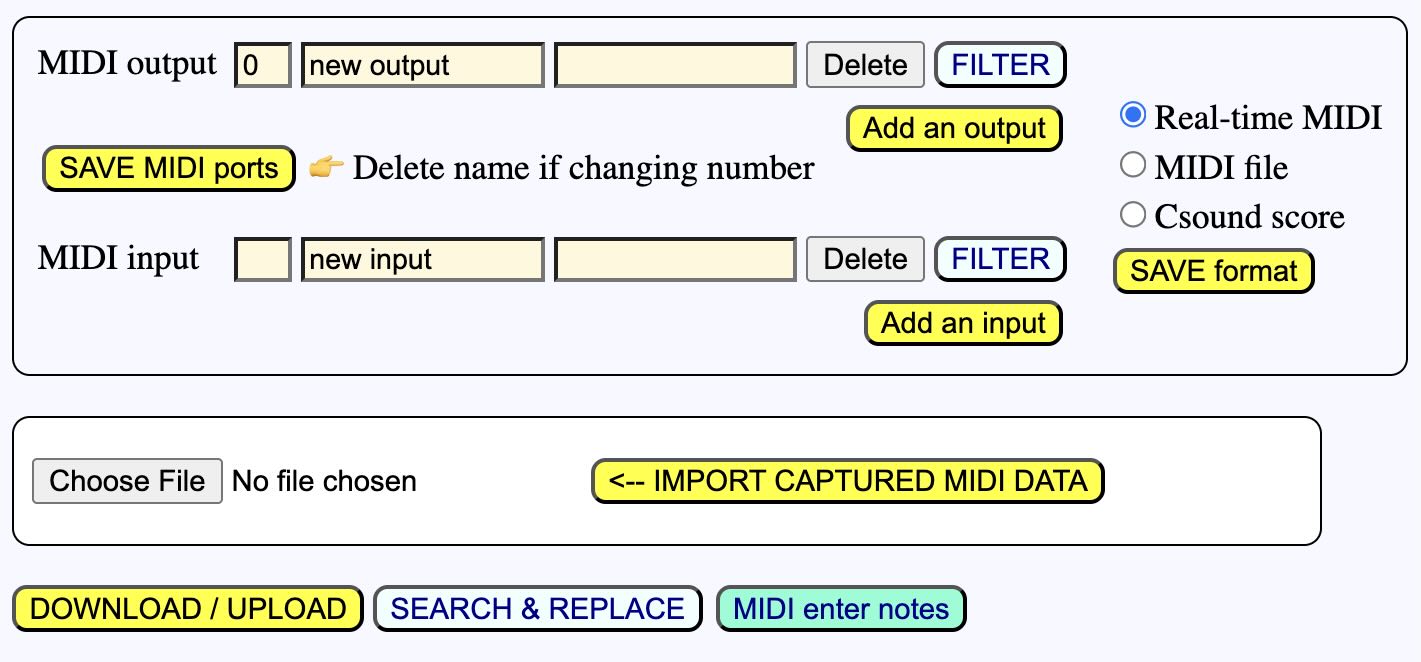
This means that BP3 will attempt to connect to the next available MIDI input and output. Every system has its own built-in MIDI devices, including those that you are currently running on the same machine. Therefore, it is unlikely that your external keyboard will be selected immediately. Never mind; click on the location in your data or grammar where you want to write notes, then click the MIDI enter notes button, which should now be visible since you declared a MIDI input. A process window will appear:
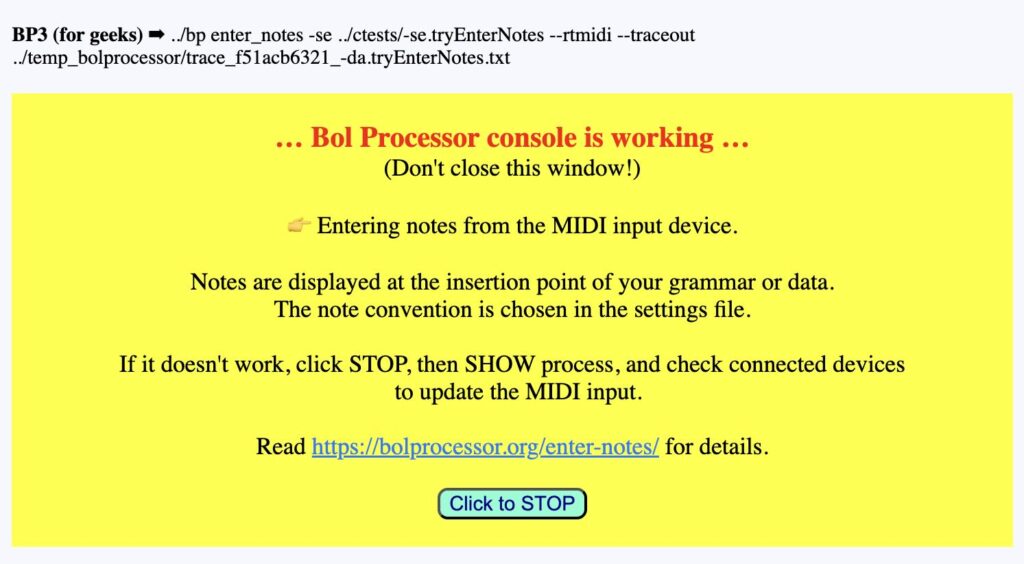
If the notes you play on the MIDI keyboard are immediately displayed on your Data or Grammar page, it means that BP3 has found your external keyboard. This is generally not the case. Clicking STOP will take you here:
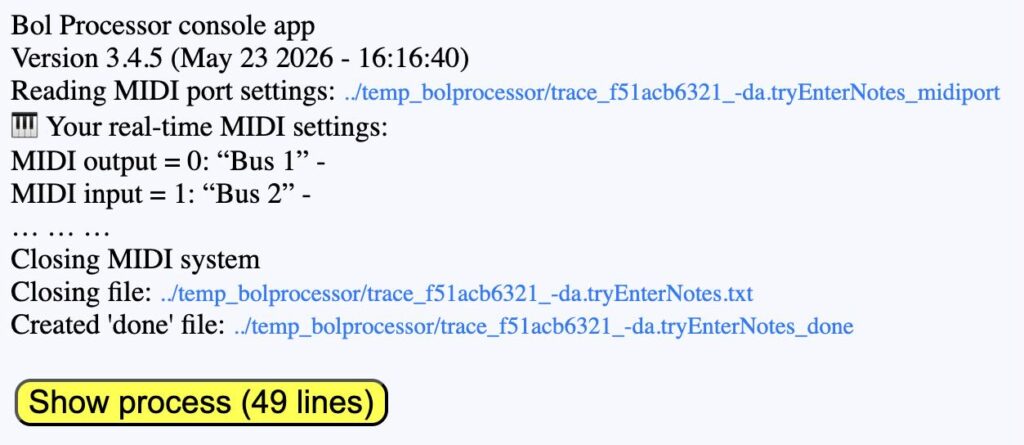
On this example you can see that the selected input was "Bus 2", which is not the external keyboard. Click Show process to read details.
This the MacOS version; the others are very similar:
Bol Processor console app
Version 3.4.5 (May 23 2026 - 16:16:40)
Reading MIDI port settings: ../temp_bolprocessor/trace_f51acb6321_-da.tryEnterNotes_midiport
🎹 Your real-time MIDI settings:
MIDI output = 0: “new output” -
MIDI input = -1: “new input” -
🎹 Setting up MacOS MIDI system
Trying to assign ports to 1 output(s) without names but possibly with numbers
MIDI output = 0: “Bus 1” 👉 the number of your choice
Trying to assign ports to 1 input(s) without names but possibly with numbers
MIDI input = 1: “Bus 2” 👉 choice by default
MIDI input 1 makes BP3 interactive
🎶 More MIDI output options are available:
MIDI output = 1: “Bus 2”
MIDI output = 2: “Pocket Key 25”
🎶 More MIDI input options are available:
MIDI input = 0: “Bus 1”
MIDI input = 2: “Pocket Key 25”
MIDI settings saved to ../temp_bolprocessor/trace_f51acb6321_-da.tryEnterNotes_midiport
🎹 Name(s) of MIDI input or/and output changed and will be updated when saving the page of your project
BP3 selected "Bus 2" as the input, but it also says that "Pocket Key 25” is another option. This is the one we need. Let us copy and paste the name, then SAVE MIDI ports:
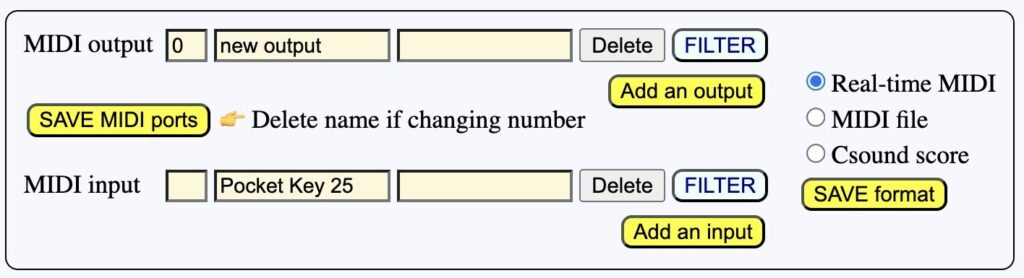
Now, clicking again the MIDI enter notes button will effectively type the names of notes played (in sequence) on the keyboard.
👉 For now, chords will be interpreted as note sequences rather than polymetric constructions. This could be addressed later.
If it still does not work, check the input filter:
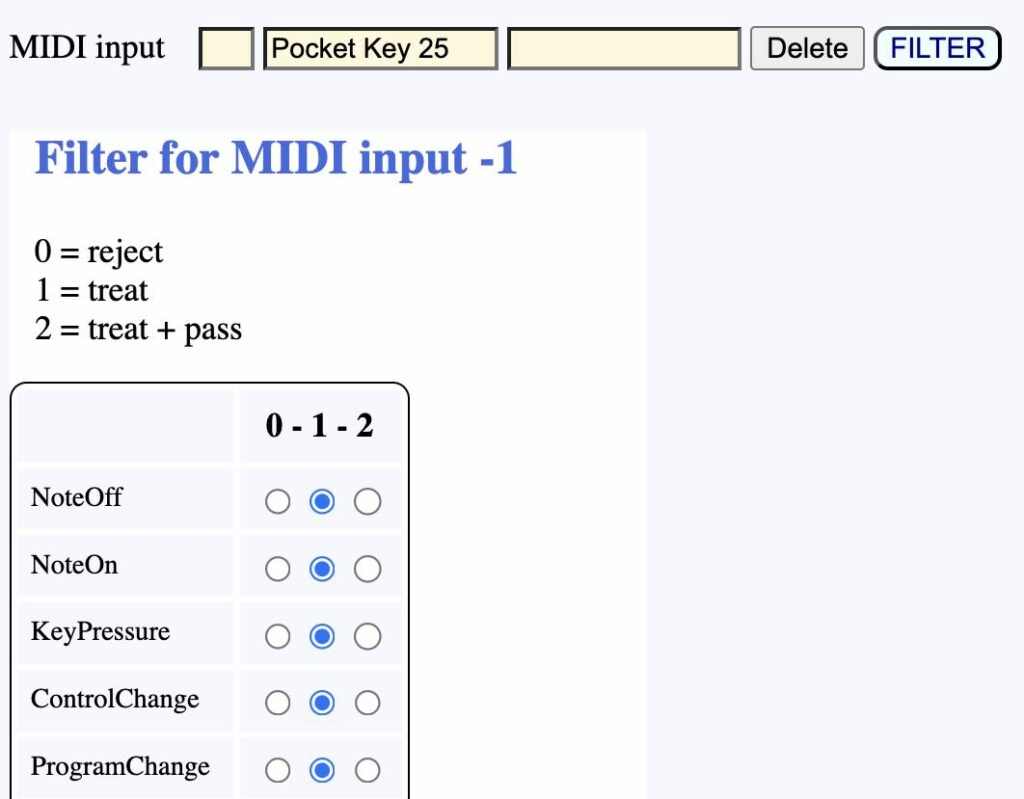
NoteOn should be at least in column 1 (treat). If NoteOn and NoteOff are in column 2 (transmit), the notes will also be heard on the MIDI output device.
You can change the note convention from English to Italian/French or to Indian. Open your project settings and select the desired convention.
Note that you can use the computer keyboard mapping and MIDI keyboard capture of notes at the same time.
For geeks: As of 26 July 2026 (v3.4.7), we switched from SSE design to a polling design, which makes it compatible with Apache, FastCGI, CGI, MAMP, XAMPP, and PHP Desktop.