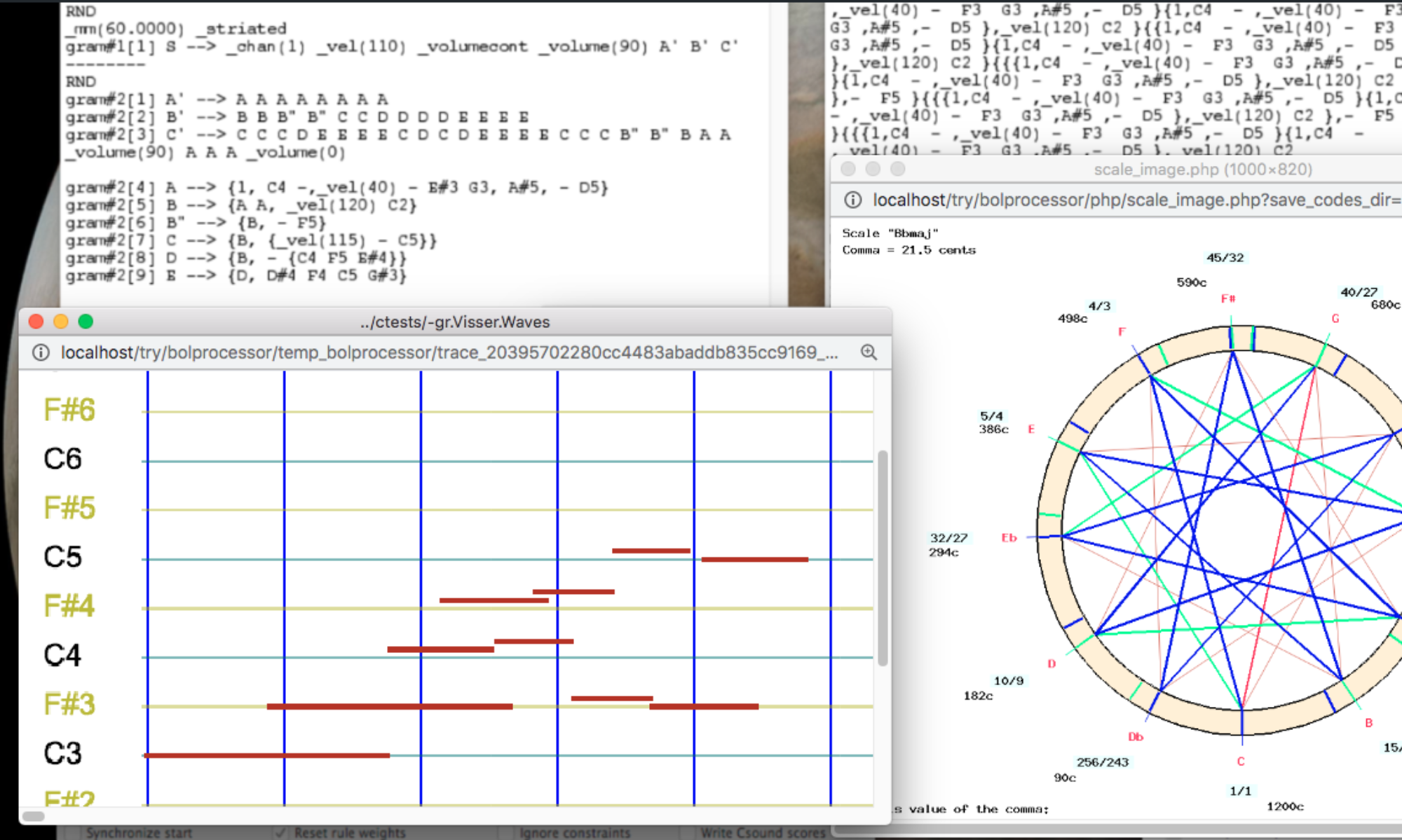
With real-time Csound, you hear the music of a grammar or data project played by Csound instruments as soon as you click PRODUCE ITEM(S) or PLAY, just as with a MIDI synthesiser. There is no longer any need to wait for Csound to write a sound file and then listen to it.
This brings together the advantages of MIDI and Csound:
- as with MIDI, the music starts at once, improvisation goes on as long as you wish, and it can be stopped, paused and continued;
- as with Csound, pitches are exact: microtonal scales are played as they are tuned, without the tricks MIDI needs;
- volume, panoramic, pitchbend and the other continuous parameters change smoothly during each note, and each instrument can have parameters of its own;
- the instruments are those of a Csound orchestra: sampled piano and flute, plucked strings, string quartet, or instruments you design.
👉 More pages about Csound in the Bol Processor: follow this link. Programmers will find how it works on this page.
What you need
Csound 7 or later must be installed on the computer: download it from csound.com. The pages of grammar and data projects show whether a suitable version is found, and suggest an update when a new one is out. Nothing else is needed: no MIDI device, and no other program.
Playing
- On the page of the grammar or data project, select the output format Real-time Csound and click SAVE.
- Click PRODUCE ITEM(S) (grammar) or PLAY (data). The first time, Csound is started with the orchestra of the project, which takes a second or two. Then the music plays.
Csound keeps running in the background after the performance, so the next ones start at once. It quits by itself after 15 minutes without music, or when you click QUIT CSOUND. If you play a project with another orchestra, Csound is restarted with that orchestra, and the page says so.
During a performance, the page shows the time of the music. The buttons work as in real-time MIDI:
- STOP ends the performance, letting the notes fade out naturally;
- PAUSE silences the music, and CONTINUE resumes it where it stopped. Notes that were sounding are not resumed in the middle;
- PANIC! silences everything at once.
In improvisation mode, a grammar produces item after item without limit, each one computed while the previous one is still playing, until you click STOP.
Instruments
The instruments are described in a Csound resource file (-cs), which names its orchestra. The project page shows this orchestra, and the Change instruments button chooses another resource file.
A project naming no resource file is played by the default instruments (-cs.0-default, orchestra 0-default.orc), with a light reverberation:
| Instrument | Sound |
|---|---|
_ins(1) | piano (recordings of the Salamander Grand Piano). Notes without _ins() are played by it. |
_ins(2) | plucked string with chorus |
_ins(3) | synthetic brass |
_ins(4) | bowed string, with a parameter splash |
_ins(5) | plucked string with echo |
_ins(6) | flute (recordings of the University of Iowa), its vibrato set by _mod() |
_ins(10) | sine wave |
For example, C4 D4 E4 _ins(6) G4 A4 plays three notes on the piano and two on the flute.
Other resource files supplied with the Bol Processor give other sounds, for instance -cs.Vina (a plucked string sliding between frets, used by -gr.vina3) or the string quartet of -cs.Beethoven-fugue-b-flat-major. You can copy them, change them, or create your own. Your files are kept in the folder csound_resources_private, which updates of the Bol Processor never touch.
Gaps or crackles in the sound
Csound computes the sound in small blocks, kept in buffers before they reach the loudspeakers. If the computer is busy for a moment, a buffer may run out and the sound breaks up. This mostly happens in the first seconds of a performance, after a long time without Csound.
The Settings button below the output format changes the size of the buffers for this computer. Larger buffers prevent gaps, but delay the sound a little after you click PLAY: 2048 frames, the default value of the hardware buffer, delay it by 46 milliseconds, which is not noticeable when listening. The hardware buffer must be at least twice the software buffer. DEFAULT VALUES brings back the usual setting. The new buffers are used from the next performance.
Playing with other musicians and devices
Although Csound plays the notes, the MIDI ports of the project can still be used. Select them on the project page and save them. They are then used for interactions:
- the music can wait for a musician:
_script(wait for C3 channel 1)holds the performance until this key is played on a MIDI keyboard, then the music goes on from there; _script(Hold for 1500 milliseconds)adds a silence of the given duration;- MIDI Start, Continue and Stop messages can be sent to other devices, and received from them if Respond to Stop/Continue is checked in the settings;
- notes of duration 0, written
<<C0>>, are sent to the MIDI output at the moment they are heard. They are silent, but another device, or another Bol Processor, can synchronise with them. The data projects-da.trySendand-da.tryReceiveshow how.
Keeping a recording
Real-time Csound plays the music without keeping it. To obtain a sound file of the same music, choose the output format Csound score: the Bol Processor writes the score, and Csound turns it into a sound file that can be played or downloaded. With the same random seed in the settings, the production is the same as the one you heard.
Good to know
- Only one orchestra can play at a time. Playing two projects with different orchestras at the same time interrupts one of them.
- If an item takes longer to compute than the end of the previous one, the music waits for it: a short silence is heard, then the rhythm continues.
- If the instruments of the resource file do not match its orchestra, some notes may be missing. The page shows Csound's messages at the end of the performance.
- On Linux, Csound may take over the audio output, so that other programs cannot play sound while it runs. Click QUIT CSOUND to release it.
If nothing is heard
- Check that the project page finds Csound 7 or later. Otherwise, the format Real-time Csound is not offered.
- Read the messages displayed when the performance starts: they tell whether Csound could open the audio output of the computer.
- Check the volume and the audio output selected on the computer: Csound plays on the default output.
- Click QUIT CSOUND and play again: Csound is restarted.
👉 Other real-time outputs: SuperCollider, OSC (Max, Pd…), MIDI and Ableton Live.
Note: This page was entirely composed by Claude Opus 5.5 on 21 November 2026.