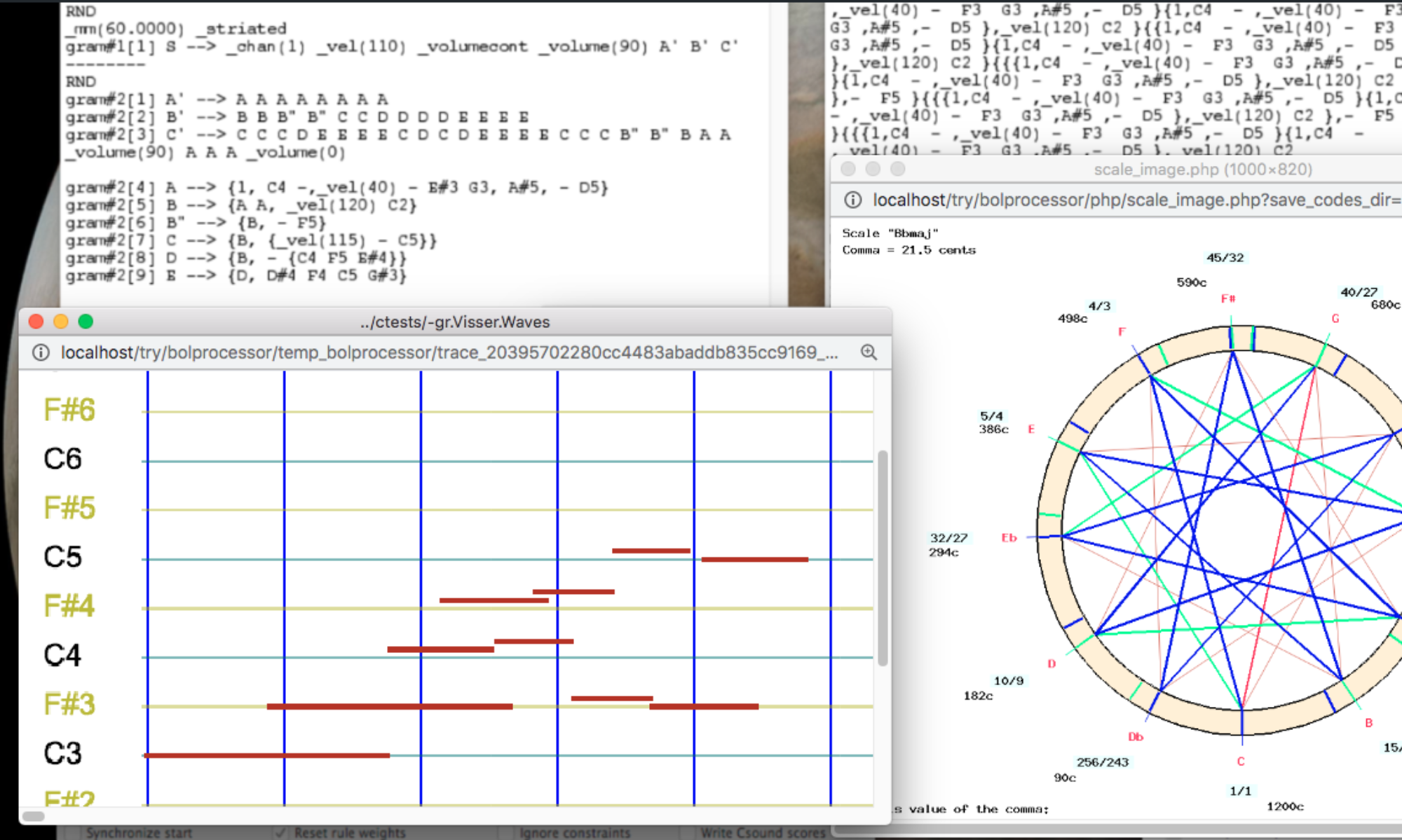
This page shows how the Bol Processor plays its productions in real time with SuperCollider, a free program for sound synthesis available for MacOS, Windows and Linux. With the output format Real-time SuperCollider, each note becomes a message to the SuperCollider server (scsynth), which plays it with a SynthDef: a synthesiser or sampler described in SuperCollider's language.
Compared with real-time MIDI, this connection offers:
- exact pitches: notes are sent with their frequency in Hertz, so microtonal scales are played as they are, without pitchbend messages or separate MIDI channels;
- every parameter of the instrument: volume, panoramic, modulation, pitchbend and additional parameters such as
_value(splash,250)reach the SynthDef by name, with their changes during the note; - precise timing: notes are sent in advance with their date (time-tagged bundles), and the server plays them at that date;
- the same instruments as Csound, with the same numbers and parameters, so a project made for Csound can be played in real time by SuperCollider.
The Bol Processor starts the SuperCollider server by itself and loads the instruments. No knowledge of SuperCollider is needed to use the instruments supplied with the Bol Processor, only to design new ones.
Installation
Download SuperCollider from supercollider.github.io/downloads and install it at its usual place:
- MacOS:
SuperCollider.appinApplications(or in aSuperColliderfolder insideApplications); - Windows: a
SuperColliderfolder inC:\Program Files; - Linux:
scsynthandsclangin/usr/local/binor/usr/bin, as installed by the package manager.
The pages of grammar and data projects then show the SuperCollider logo with the state of the program: installed, and whether its server is running. The output format Real-time SuperCollider is offered when SuperCollider is installed, or when a SuperCollider server is already answering.
Only the server (scsynth) is needed to play. The SynthDefs supplied with the Bol Processor are already compiled. The language (sclang) is used only to compile SynthDefs that have been created or changed.
👉 Starting the server has been tested on MacOS. It should work on Windows and Linux, but has not been tested there yet.
Playing a project
- On the page of the grammar or data project, select the output format Real-time SuperCollider and click SAVE.
- Click PRODUCE ITEM(S) or PLAY. The first time, the Bol Processor starts the SuperCollider server, loads the SynthDefs and the recordings of the sampled instruments (in less than 2 seconds), then plays.
STOP, PAUSE and PANIC silence the notes being played. The server started by the Bol Processor keeps running between performances, so the next ones start at once. It quits by itself after 15 minutes without a performance, or when you click QUIT SUPERCOLLIDER below the output format.
With the SuperCollider program open
If you have booted the server in the SuperCollider program (IDE), on its usual port 57110, the Bol Processor plays on this server instead of starting its own. Its messages, such as errors in SynthDefs, then appear in the Post window of SuperCollider, and the Bol Processor never quits this server.
The recordings of the sampled instruments need more buffers than a server has by default. If the Bol Processor says that the server has too few buffers, run this line in SuperCollider:
s.options.numBuffers = 16384; s.reboot;or quit the server of SuperCollider, so that the Bol Processor starts its own.
Instruments
The instruments are listed in a SuperCollider resource file, whose name starts with -sc. It has the same form as a Csound resource file (-cs): the name, number and parameters of each instrument. The instrument named NAME is played by the SynthDef named NAME. The -sc file also names the file (.scd) in which these SynthDefs are written.
A project chooses its -sc file in a line on top of the grammar or data, for example -sc.Vina. On the project page, the Change instruments button adds or replaces this line. The Show/hide details button lists the instruments, their SynthDefs and the recordings they use, and points out any instrument whose SynthDef is missing.
Default instruments
A project naming no -sc file is played with -sc.0-default, whose SynthDefs (in 0-default.scd) imitate the instruments of the default Csound orchestra 0-default.orc, with the same numbers:
| Instrument | Name | Sound |
|---|---|---|
_ins(1) | piano | recordings of the Salamander Grand Piano, with velocity layers and dampers. Notes without _ins() are played by it. |
_ins(2) | plucked_chorus | plucked string with chorus |
_ins(3) | synth_brass | synthetic brass |
_ins(4) | bowed_string | cello-like sound, its vibrato set by the parameter splash |
_ins(5) | plucked_string | plucked string with echo |
_ins(6) | flute | recordings of a flute (University of Iowa), its vibrato set by _mod() |
_ins(10) | sine | sine wave |
An instrument can be called by its number or its name: _ins(6) and _ins(flute) are the same. A reverb (bp_fx) is added to all of them.
Other examples
-sc.Beethoven-fugue-b-flat-major: a string quartet (violins, viola, cello) playing recordings, used by the data project-da.Beethoven-fugue-b-flat-major, imported from MusicXML.-sc.Vina: a plucked string whose pitch slides while it vibrates, as on a vina. It is used by the grammar-gr.vina3, in which_pitchcontand_cont(slide)make the pitch follow continuous curves.
Projects made for Csound
A -cs file is only used by Csound. To play a project naming a -cs file in SuperCollider, it needs a -sc file with the same instruments, and a SynthDef for each instrument. A project using only the default Csound instruments (0-default.orc) sounds similar with the default SuperCollider instruments, as they have the same numbers and parameters.
Creating instruments
The files supplied with the Bol Processor are in the folder supercollider_resources. They are replaced by each update, so your own files go to supercollider_resources_private, which updates never touch. The page of the SuperCollider resource folder (link next to the SuperCollider logo) lists both, marking the supplied files (fixed). A fixed file can be copied to your folder and changed there.
To create an instrument:
- Write its SynthDef in a
.scdfile ofsupercollider_resources_private. Read0-default.scdfirst: its comments describe all the arguments sent by the Bol Processor. - Create a
-scfile naming this.scdfile, and give it an instrument with the name of the SynthDef, its number and its parameters, as in a Csound resource file. - Name this
-scfile in the project and play it. The Bol Processor compiles the.scdfiles that have changed (this needssclang) and loads them into the server. Errors in the SynthDefs are displayed on the page of the performance.
SynthDef names are shared by all projects. Those of supercollider_resources are loaded first, then yours, so a SynthDef of yours with the name of a supplied one replaces it.
What a SynthDef receives
Each note starts a new synth with named arguments. A SynthDef uses the ones it declares and ignores the others:
freq: the pitch in Hertz, including the tuning of the scale (_scale());sustain: the duration in seconds;vol,vol2: volume at the beginning and the end of the note (_volume(), 0 to 127);vel: attack velocity (_vel()), if the instrument has this field;pan/pan2,mod/mod2,press/press2,bend/bend2(in cents): panoramic, modulation, pressure and pitchbend at the beginning and end;NAME,NAME2: the additional parameters of the instrument, e.g.splashandsplash2;volenv,bendenv,pressenv,modenv,panenv,NAMEenv: the same values as envelopes over the duration of the note, when they follow continuous curves such as_pitchcont. A SynthDef reads them withEnvGen.kr(\volenv.kr(...), timeScale: sustain)(seeVina.scd);p4,p5…: every field of the Csound score line of the note.
A SynthDef must end the note after sustain (doneAction: 2) and release it when its argument gate is set to 0: this is how STOP, PAUSE and PANIC silence the notes.
Sampled instruments
A .scd file declares the recordings its SynthDefs play with lines such as:
// BP_SAMPLES 1 Salamander_piano.jsonThe JSON file is a map of the recordings: the file of each sample, its measured pitch, its loop points, and the sample to play for each key and velocity layer. The Bol Processor loads these recordings into the server before playing, once until the server is restarted. In a SynthDef, ~bpSample.(set, channels, key, layer, freq) plays the recording of a key and layer, tuned to freq and looped if needed. Sets 1 to 9 are used by the Bol Processor: number yours from 10 to 99. The recordings are shared with Csound: those of the folder csound_resources (e.g. Salamander_piano/) need not be copied.
Interaction
The Bol Processor can wait for MIDI events during the performance, for instance _script(wait for C3 channel 1) (see interactions). With SuperCollider, the MIDI ports of the project page are used for this interaction only: select a MIDI input and save the MIDI ports. Notes of duration 0, such as <<C0>>, are also sent to the MIDI output at their date, as synchronisation signals for other programs.
If nothing is heard
- Check that SuperCollider is installed at the place given above: the project page says SuperCollider was not found on this computer otherwise.
- Click Show/hide details on the project page: the notes of an instrument whose SynthDef is not defined are not heard.
- Read the messages on the page of the performance, which report errors of the server and errors in the SynthDefs. With a server booted in SuperCollider, look at its Post window.
- Click QUIT SUPERCOLLIDER and play again: the server is restarted and everything is loaded again.
- Check the audio output of the computer: the server started by the Bol Processor plays on the default output device.
👉 Other programs receiving Open Sound Control (Max, Pd, SuperCollider's language…) can be used with the output format Real-time OSC: follow this link.
Note: This page was entirely composed by Claude Opus 5.5 on 21 November 2026.