This is a supplement to the page Bol Processor ‘BP3’ and its PHP interface.
A one-click notarized installer of Bol Processor BP3 is available. It is called "BolProcessorInstaller.pkg" and it can be downloaded from here (unique location).
The Bol Processor on MacOS is now a standalone application "BolProcessor.app" (based of PHP Desktop) that no longer requires an additional installation. The option to use "BolProcessor.app" is offered each time you run the installer (unless MAMP or XAMPP are installed). You will then be asked to select the Applications folder or any other location on your computer.
If you would like to use "BolProcessor.app" instead of the MAMP or XAMPP installation, you will first need to deactivate the Apache servers by renaming them in the Applications folder. For example, replace "MAMP" with "MAMP(off)". The installer will then search all the mounted disks for an existing "BolProcessor.app" which will be replaced with the update. If it cannot find it, you will be asked to select the Applications folder or another location on your computer.
The installer (or the script) is used for both initial installation and updates. Each time you run it, it will download the latest versions of the BP3 console source files, the precompiled 'bp' console, the interface PHP files and the sample set contained in the 'ctests' folder. Data, grammars and scripts that you've created will not be deleted. However, if you have modified files in the 'ctests' folder, they will be reverted to the current distribution version.
Geeks may prefer an equivalent method using a script included in this package, see below.
Install MAMP or XAMPP
👉 Using the standalone application "BolProcessor.app" does not require MAMP or XAMPP Apache servers. So you can skip this section.
The installer of the Bol Processor will first check that a local Apache server (either MAMP or XAMPP) has been installed. If no Apache server is available, it will install the standalone application "BolProcessor.app". Therefore, the first step in installing the Bol Processor using an Apache server is to install MAMP or XAMPP. Read this page for details.
For MAMP (and MAMP PRO), the "htdocs" folder is in Applications/MAMP. For XAMPP, it is in Applications/XAMPP/xamppfiles. The Bol Processor installer will find it in both cases.
To stop, start or restart MAMP Apache, use these Terminal commands:
/Applications/MAMP/Library/bin/apachectl stop
/Applications/MAMP/Library/bin/apachectl start
/Applications/MAMP/Library/bin/apachectl restart
To check whether MAMP Apache is running, use this Terminal command:
pgrep -fl '/Applications/MAMP/Library/bin/httpd'To stop, start or restart XAMPP Apache, use these Terminal commands:
sudo /Applications/XAMPP/xamppfiles/xampp stopapache
sudo /Applications/XAMPP/xamppfiles/xampp startapache
sudo /Applications/XAMPP/xamppfiles/xampp restartapache
To check the status of XAMPP Apache, use this Terminal command:
/Applications/XAMPP/xamppfiles/xampp statusInstall the Bol Processor
Run the installer "BolProcessorInstaller.pkg" — or the "install_bolprocessor.sh" script, as both are equivalent.
By default, all Bol Processor program, documentation and data files will be created in a folder called "bolprocessor" and will be contained in the "htdocs" folder created by XAMPP or MAMP, or inside the "BolProcessor.app" package. In the first case, on your startup disk. This is not a problem as the whole set does not take up much space, typically less than 60 Mb when installed, and the Bol Processor data is basically pure text.
However, you may wish to install the "bolprocessor" folder to a different location, including an external device. In this case, follow the instructions for Relocating "bolprocessor" before running the installer or the script.
Using the installer
Download "BolProcessorInstaller.pkg" from here and double-click it.
👉 If you have previously downloaded an older version of the installer, your browser may be pointing to the old version instead of the latest. It is safe to check the size of "BolProcessorInstaller.pkg" in your Downloads folder (read below the Security section). If necessary, use a different browser for the download.
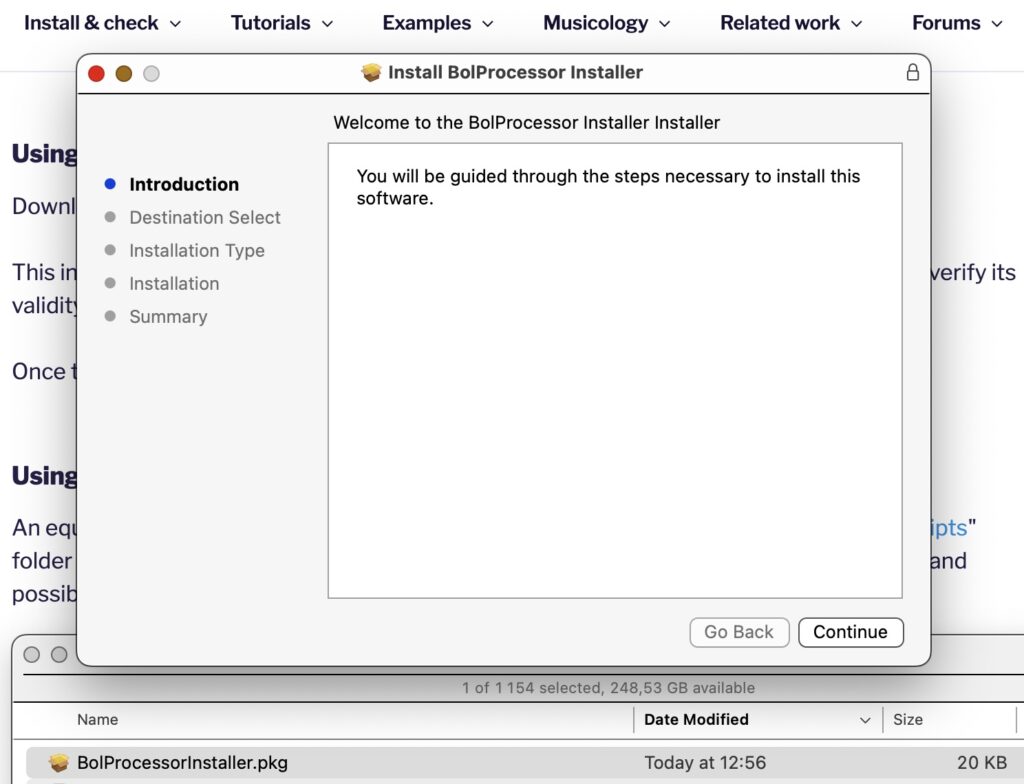
This installer has been notarized, which means it contains information that allows Apple to certify its validity. The only changes you will have to confirm are usual software installation procedures.
If you have chosen the option of the standalone application called "BolProcessor.app", the installation is now complete. You can proceed to install Csound if you need it. Otherwise, follow the guided tour on page Bol Processor ‘BP3’ and its PHP interface.
For geeks using XAMPP or MAMP: The installer sets up user/group parameters in the "bolprocessor" folder: "daemon:admin" if XAMPP is the Apache server. If MAMP is used, the "<user_id>:admin" setting is retained.
Once that's done, go down to the section Start the Bol Processor interface.
Using the script (geeks only!)
An equivalent method is to run the "install_bolprocessor.sh" script found in the "macos-scripts" folder downloaded here. This makes it possible to understand each step of the installation and possibly suggest improvements.
After downloading "macos-scripts.zip", open the Terminal and type:
cd Downloads
unzip -qo macos-scripts.zip
cd macos-scripts
sudo ./install_bolprocessor.sh
Installation issues
There are currently no known installation issues with the standalone "BolProcessor.app" application. A minor problem that we hope to resolve soon is that on rare occasions a page may need to be reloaded to display.
If the installer (or the script) does not find a "htdocs" folder created by XAMPP or MAMP, it will suggest installing the standalone "BolProcessor.app" application.
👉 The installer will create or feed a "bolprocessor" folder in the "htdocs" folder used by XAMPP or MAMP. If you have used XAMPP in the past and want to switch to MAMP, you will need to rename the "XAMPP" and "xamppfiles" folders before running the installer.
Start the Bol Processor interface
Assuming that the installation was successful, and the Apache server is running, start XAMPP or MAMP and point your browser to localhost/bolprocessor/php/ or (if it doesn't work) to localhost:8888/bolprocessor/php/.
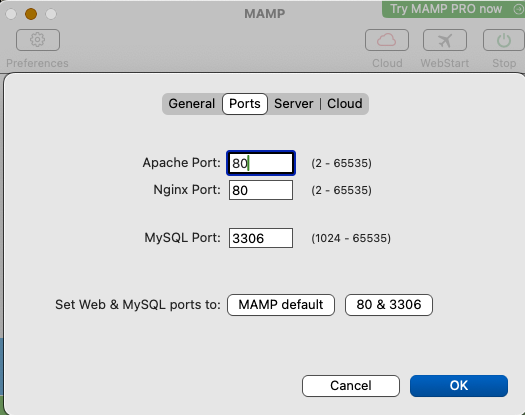
One of these will display the home page of the Bol Processor. The default port used by the free MAMP is "8888", but you can change it to "80" in MAMP settings (see picture), so that the ":8888" option is no longer required.
Compile the 'bp' console
The compiled 'bp' console is installed (or updated) by the install script. So, normally this step is no longer needed, except for geeks who wish to modify the source files in the "bolprocessor/source/BP3" folder.
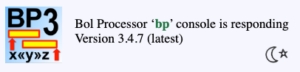
If you see this frame in the image at the top right of the page, the console is already compiled and running. Skip this section!

If you see this frame in the image at the top right of the page, your life will still be easy! All you have to do is click on the link to compile the console, which will take a minute or two.
It is very unlikely that the compilation will fail. If it ever happens, please contact us!
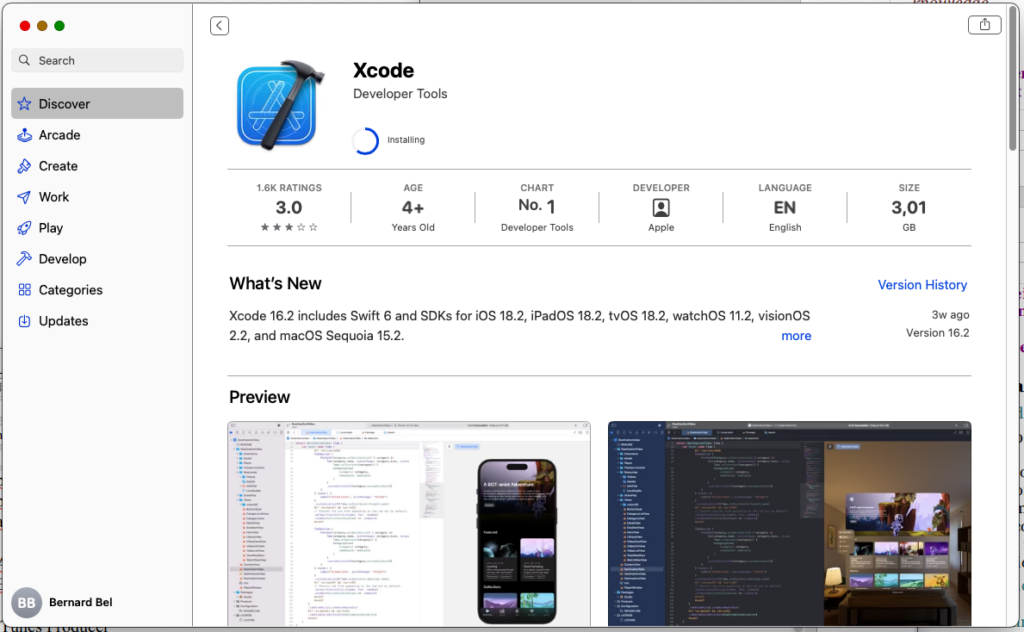
If you don't see the link to compile, and instead a mention that 'gcc' is not responding, you may need to install the Xcode toolkit on your machine (link to App Store).
Install and launch Xcode (free) to enable the compilation. Click "Cancel" when Xcode asks you to "create a project", go back to the Bol Processor page and reload it.
Now, you should see the compilation link.
👉 There are other methods of installing 'gcc'. Fans of Terminal commands can simply try the command:
brew install gccInstall Csound
Csound is not required to run the Bol Processor, as you can work with MIDI files and real-time MIDI, including microtonal corrections. However, it will give you access to a different approach to sound synthesis.
Just download a pre-built installation of Csound (MacOS 6.18) from its download page.
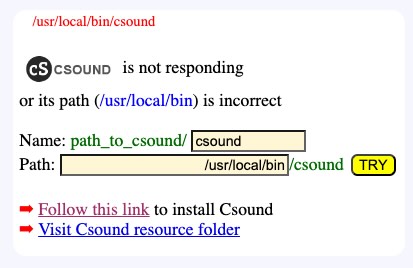
The BP3 interface should be able to figure out the location of "csound" and fix its path accordingly. If it does not respond, you will be asked to change the path and perhaps the name of the Csound console (see image).
😀 Now, the Bol Processor is fully operational! You can try examples contained in the 'ctests' folder, or follow the guided tour on page Bol Processor ‘BP3’ and its PHP interface.
Updating to new versions
To update the Bol Processor console, its PHP interface and examples (the contents of the "ctests" folder), simply rerun "BolProcessorInstaller.pkg". Using the latest version is safe!
The installer will download and install current versions of the software and data.
Updating will not modify or delete any data you have created in the "ctests" folder or outside it. However, if you have modified a sample file without changing its name, it will be reverted to its distribution version.
The installer will also preserve the "_settings.php" file (if it exists), which contains your project settings.
For geeks only!
Geeks using the "BolProcessor.app" standalone application can modify its PHP interface, its C source code, and recompile it.
All files are in this location:
BolProcessor.app/Contents/Resources/www/Obviously, if you run again the "BolProcessorInstaller.pkg" installer, these files will be replaced with the (latest) distribution.
Security
You are right to be concerned about security. Can you be sure that you have downloaded the correct (and latest) version of "BolProcessorInstaller.pkg"? Normally yes, this installer is safe because it has been notarized.
The size of the "BolProcessorInstaller.pkg" file is exactly 21651 bytes and its SHA-256 is
449ef74917bbba1132495fc1cfac7f26850c55608d5d786771f1b4a0f44a804a. You can calculate the SHA-256 checksum on this page. These numbers will indeed be subject to change with the release of new versions of the installer. Current version: 3 March 2025.
Please DO NOT SHARE THE INSTALLER, only its link: https://bolprocessor.org/misc/BolProcessorInstaller.pkg
Geeks may want to customise it for their own use. Just download this folder which contains the script files (install_bolprocessor.sh and postinstall) along with instructions on how the installer has been built.
For readers not conversant with Unix shell scripts, the following is a description of the process in human language:
Check that an Apache server MAMP or XAMPP is installed by finding either MAMP/htdocs or xampp/htdocs on the computer (not case-sensitive). If it is not found, install "BolProcessor.app" at the desired location.
Download the latest distribution files from GitHub:
https://github.com/bolprocessor/bolprocessor/archive/graphics-for-BP3.zip
https://github.com/bolprocessor/php-frontend/archive/master.zip
https://github.com/bolprocessor/bp3-ctests/archive/main.zipUnzip these three files. They create folders with names:
bolprocessor-graphics-for-BP3
php-frontend-master
bp3-ctests-mainIf MAMP or XAMP are used, create a folder named "bolprocessor" (if it does not yet exist) inside the "htdocs" folder of the Apache server. If "BolProcessor.app" is installed, the "bolprocessor" folder is replaced with "www" in the BolProcessor.app/Contents/Resources/ package.
Copy bolprocessor-graphics-for-BP3/source to bolprocessor/ (or www/).
If there is already a "source" folder, delete itCopy bolprocessor-graphics-for-BP3/Makefile to bolprocessor/ (or www/)
Copy bolprocessor-graphics-for-BP3/BP3_help.txt to bolprocessor/ (or www/)
Copy bolprocessor-graphics-for-BP3/Credits.txt to bolprocessor/ (or www/)
Copy bolprocessor-graphics-for-BP3/BP3-To-Do.txt to bolprocessor/ (or www/)
Copy bolprocessor-graphics-for-BP3/License.txt to bolprocessor/ (or www/)
Copy bolprocessor-graphics-for-BP3/ReadMe.txt to bolprocessor/ (or www/)Copy bolprocessor/php/_settings.php to bolprocessor/ (or www/) (if it exists)
Copy php-frontend-master/php to bolprocessor/ (or www/)
If there is already a "php" folder, delete itCopy bolprocessor/_settings.php to bolprocessor/php/ (if it exists)
Create a folder bolprocessor/csound_resources if it does not yet exist
Copy the content of php-frontend-master/csound_resources to bolprocessor/csound_resources
Files that already exist should be replaced with their updated versionsCreate a folder htdocs/bolprocessor/ctests if it does not yet exist
Copy the content of bp3-ctests-main to bolprocessor/ctests
Files that already exist should be replaced with their updated versionsDelete the temporary download directory
Set permissions of the bolprocessor folder recursively to "775", and owner/group to <your_id>:admin if MAMP is used, or daemon:admin if XAMPP is used.
➡ There is no security risk in setting "775" permissions, as the MAMP or XAMPP Apache server will be running on your private computer. The Bol Processor never creates/modifies files outside of its "bolprocessor" folder.
Delete bolprocessor/bp (or www/bp) if it exists and replace it with the current 'bp' console.
Relocating "bolprocessor"
👉 Apparently, relocated installations do not work with XAMPP after a reboot, unless the "BolProcessorInstaller.pkg" installer is run again.
If you are using the "BolProcessor.app" standalone application, just move it to the desired location, as it contains all data and settings.
The Bol Processor can also be installed outside the "htdocs" folder created by MAMP or XAMPP (on your boot drive). You might want it near related projects, or use extra space from an external hard drive. There may also be situations where creating files on the boot drive is restricted to the super admin.
Fortunately, the process of relocating is simple.
If you have already created a "bolprocessor" folder by running the installer, drag it to the desired location and delete it from the "htdocs" folder. If not, create an empty "bolprocessor" folder in the desired location.
Then, open the Terminal (in the Applications folder) and point it to the "htdocs" directory. For those unfamiliar with Unix commands, you will need to type "cd " (followed by a space) and drag the "htdocs" directory to the end of this command, then press "return". You can type the instruction "ls -al" to see the contents of "htdocs", which is normally empty.
Let's say you've created an empty folder "bolprocessor" inside a folder called "MUSIC" on an external drive called "EXT". The instruction creating the symbolic link is:
ln -s /Volumes/EXT/MUSIC/bolprocessor bolprocessor
Make sure that the symbolic link you created points to the correct location: you will now see a "bolprocessor" icon with a small arrow in the bottom left corner. Double-click it, it should open the destination folder.
👉 You may wonder why symbolic links are used instead of MacOS aliases, which do not require the use of the Terminal. The reason is that the Apache servers don't accept alias redirections.
You can now safely run the installer (or install script) and, if necessary, proceed to compile the 'bp' console. Make sure you use the latest version of the installer (from 3 January 2025), as it is designed to work with symbolic links.
👉 Never change the names of the "bolprocessor" folder and symbolic link, otherwise the installation will fail.
The first time you run the Bol Processor, MAMP or XAMPP may ask your permission to display files outside its "htdocs" folder. Please contact us if you're experiencing issues with this relocation!
If you're not afraid of symbolic links, you can use the same technique to relocate some data files outside the "bolprocessor" folder, for example to a location in your Dropbox (including shared folders), as explained here.
Uninstall the Bol Processor
Uninstalling the Bol Processor, and all the data downloaded or created for its use, is very simple: delete the "bolprocessor" folder, and the "bolprocessor" symbolic link if you have created it.
If you were using the "BolProcessor.app" standalone application, just delete it, as it contains all your data and settings.
Bernard Bel
Creation: August 2024